

 Check the
documentation
Check the
documentation Ask the
Community
Ask the
Community Take a look
at
Academy
Take a look
at
Academy Cognite
Status
Page
Cognite
Status
Page Contact
Cognite Support
Contact
Cognite Support


How to fix Video Playback Failure – Error Code: 232011 [Cognite Official]
Overview
If you're seeing the following message while trying to view a training video:
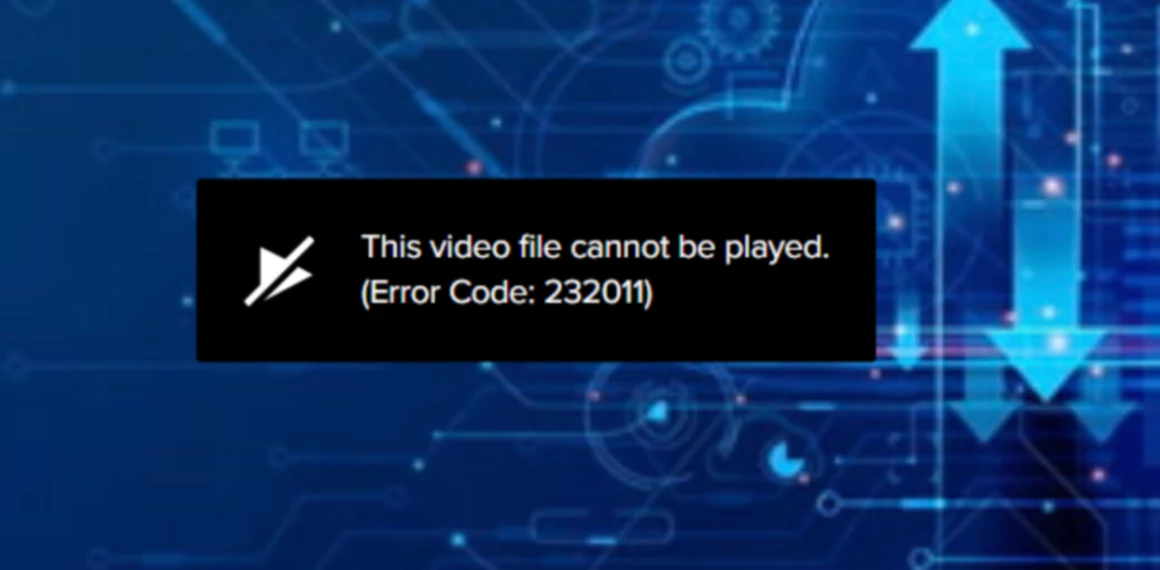
This error typically indicates an issue with your browser’s settings or cached data. This guide will walk you through simple troubleshooting steps to fix error 232011 so you can stream videos without interruptions.
Quick Fix
The most common solution is to clear your browser’s cache and cookies. If that doesn’t work, try other quick fixes such as watching the video in an incognito or private window, disabling hardware acceleration, turning off browser extensions, updating your browser, resetting its settings, or switching to a different browser.
Easy Troubleshooting steps
This error is commonly caused by one or more of the following:
- Corrupted files or an overflowing cache can cause error 232011
- Clearing the cache and cookies refreshes your browser so no corrupted files interfere with your video. This step solves error 232011 most of the time.
- Clearing the cache and cookies refreshes your browser so no corrupted files interfere with your video. This step solves error 232011 most of the time.
- Extensions, plugins, or add-ons can prevent videos from playing normally.
- Aggressive ad-blockers, privacy tools, or script-blocking extensions may prevent the video player from loading required scripts.
- Incognito mode disables all the extras and works without cached files, so this might be your solution.
- Extensions and plug-ins can interfere with video playback.
- Disable hardware acceleration.
- This setting uses your graphics card to display web content but can cause playback errors. Turning hardware acceleration might help you fix the video error and watch videos uninterrupted.
- In Chrome, go to ⋮ > Settings > System and toggle off "Use graphics acceleration when available.”
- Safari does not offer the feature to turn off and on hardware acceleration.
- In Edge, go to ••• > Settings > System and performance and make sure the toggle next to "Use graphics acceleration when available" is off.
- In Firefox, go to ☰ > Settings > General and uncheck both "Use recommended performance settings" and "Use hardware acceleration when available."
- Reset your browser settings.
- Delete custom configurations and settings that might be causing the 232011 error. You'll lose all your saved passwords and related information, so be cautious when you're taking this troubleshooting measure
- Delete custom configurations and settings that might be causing the 232011 error. You'll lose all your saved passwords and related information, so be cautious when you're taking this troubleshooting measure
- Update your browser
- Turn off your proxy server (if you have one)
- The proxy server can cause internet connection problems, manifesting in a 232011 code. You should be able to turn it off in your computer's System settings.
- The proxy server can cause internet connection problems, manifesting in a 232011 code. You should be able to turn it off in your computer's System settings.
- Use another browser.
- An incompatible web browser will give you video playback errors. You can always use a different browser if that's the case. For example, if you get the 232011 error when trying to watch a video of one of our Academy tutorials on Chrome, you can try Firefox or Edge.
