

 Check the
documentation
Check the
documentation Ask the
Community
Ask the
Community Take a look
at
Academy
Take a look
at
Academy Cognite
Status
Page
Cognite
Status
Page Contact
Cognite Support
Contact
Cognite Support


How to Submit Public & Private Developer Requests in Cognite Hub
Innovation happens best when everyone has a voice. Instead of relying on a single project manager to funnel feature requests, Cognite Hub solves the bottleneck by enabling all eyes in your organization—or our global community, depending on your preference—to tap in. Whether you are an admin, a developer, or a daily end-user, this is your official space to share frontline insights and directly influence the Cognite Data Fusion product roadmap.
Why Submit Your Ideas?
-
Public Ideas: The Product Ideas board is your dedicated space to share requests with the Cognite product team and the community. Submitting publicly allows others to validate, vote on, and build upon your idea!
-
Private Ideas: Submitting privately ensures that feature requests tied to your unique business goals, confidential internal initiatives, or proprietary workflows stay strictly between your organization and Cognite.
-
Track Your Impact: Want a top-level view of your contributions? Upon request, the community team will share analytics on the status of all the requests your organization has submitted through Cognite Hub.
1. Best Practices for Writing an Idea To ensure our product team fully understands your request, keep your submission clear and focused:
-
Use the User Story Format: Frame your idea around the problem you are trying to solve: As a [role], I want to [function/feature], so that [benefit/outcome].
-
One Idea Per Post: Keeping requests separate ensures clear tracking, accurate voting, and targeted discussions.
-
Provide Context: Include relevant background information, current workarounds, or screenshots.
2. Submission Steps
-
Log in to your account on Cognite Hub.
-
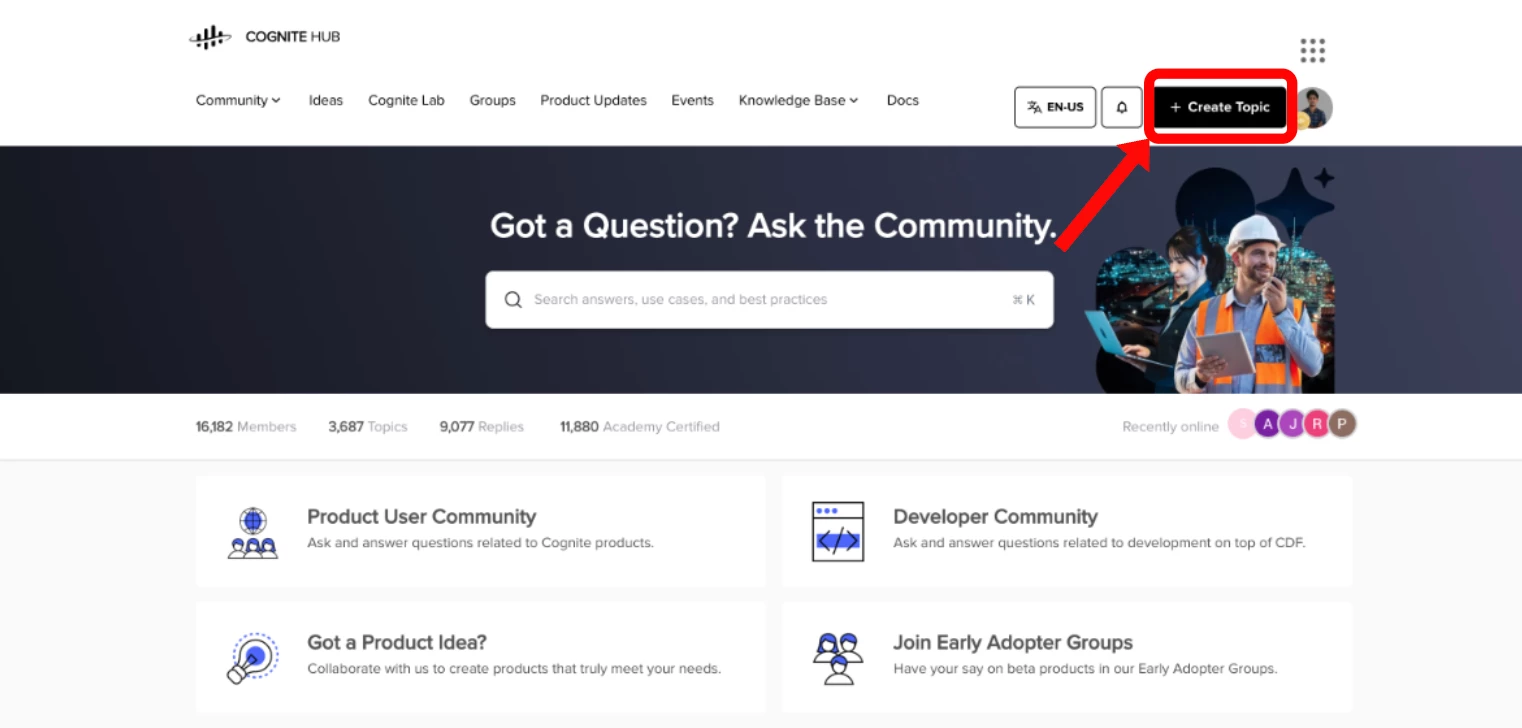
Click the button to create a new topic.
-
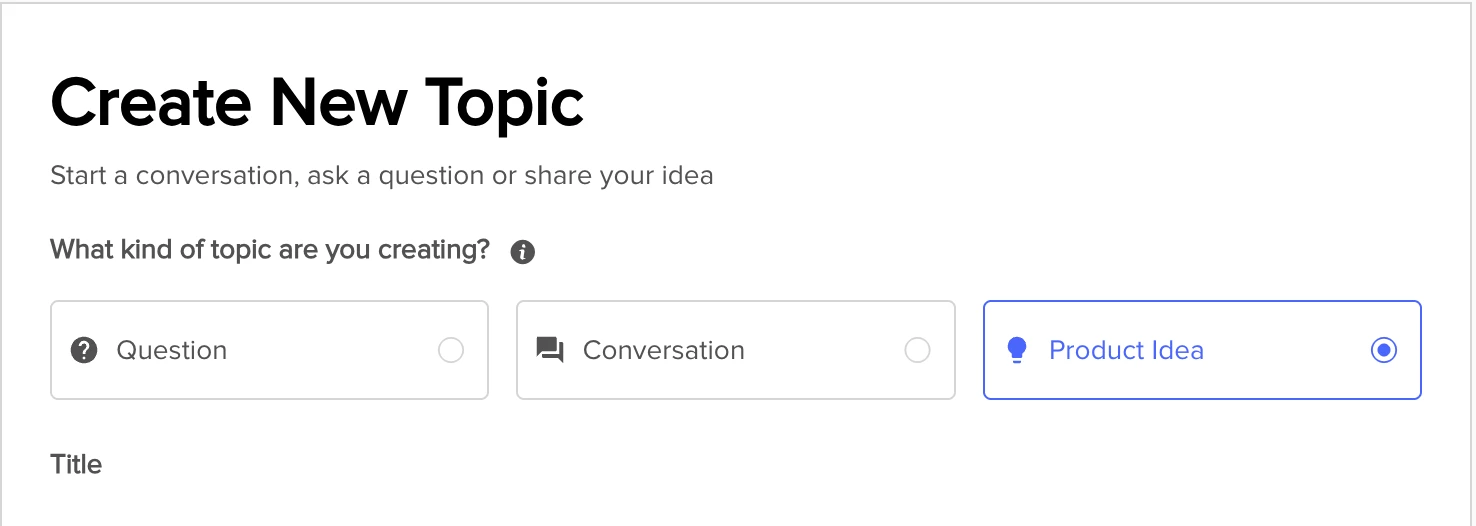
Select the option “Product Idea”.
-
Enter a descriptive title, and paste your user story and context.
-
Choose your Visibility: For a Public Idea, select the category “Product Ideas”.

For a Private Idea, select “<company name> Private Ideas”. 💡 Note: If you don't see a private category for your organization, let us know in the comments or reach out to the community team, and we will get it set up for you!

-
Select the product area and assign relevant tags (e.g., InField, Charts, Data Modeling).
-
Submit your idea.
3. Quick Tip: Search Before You Submit
-
Avoid Duplicates: If someone has already suggested your feature, submitting a new post splits the votes and makes the idea appear less popular.
-
Upvote and Comment: If you find a matching idea, give it an upvote and add a comment detailing your specific use case.
4. Understanding the Idea Lifecycle You will see the status of your idea update as it moves through our evaluation process:
-
New: Awaiting initial review.
-
Gathering Interest: Open for community votes and discussion.
-
Planned for Development: Added to the official product roadmap.
-
Parked: On hold due to current roadmap priorities or team capacity.
-
Implemented: The feature has been built and is now available.
-
Closed: Will not be moving forward (usually a duplicate or out of scope).
