Check the
documentation
Check the
documentation Ask the
Community
Ask the
Community Take a look
at
Academy
Take a look
at
Academy Cognite
Status
Page
Cognite
Status
Page Contact
Cognite Support
Contact
Cognite Support


Overview
The Qualitizer web application is a collection of tools that help you understand, troubleshoot, and improve the quality of your CDF deployment.
It helps you solve problems such as:
-
“Why does user X see this search result, while user Y does not?”
-
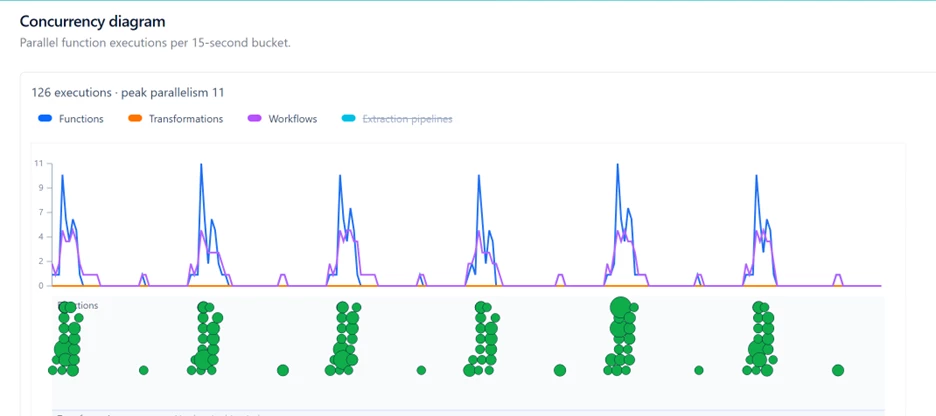
Identifying failing activities and processing bottlenecks so you can reduce spikes and improve system stability.
The application includes built-in help pages that explain how to use the features and understand the insights it provides.
Qualitizer is available in English and Japanese.
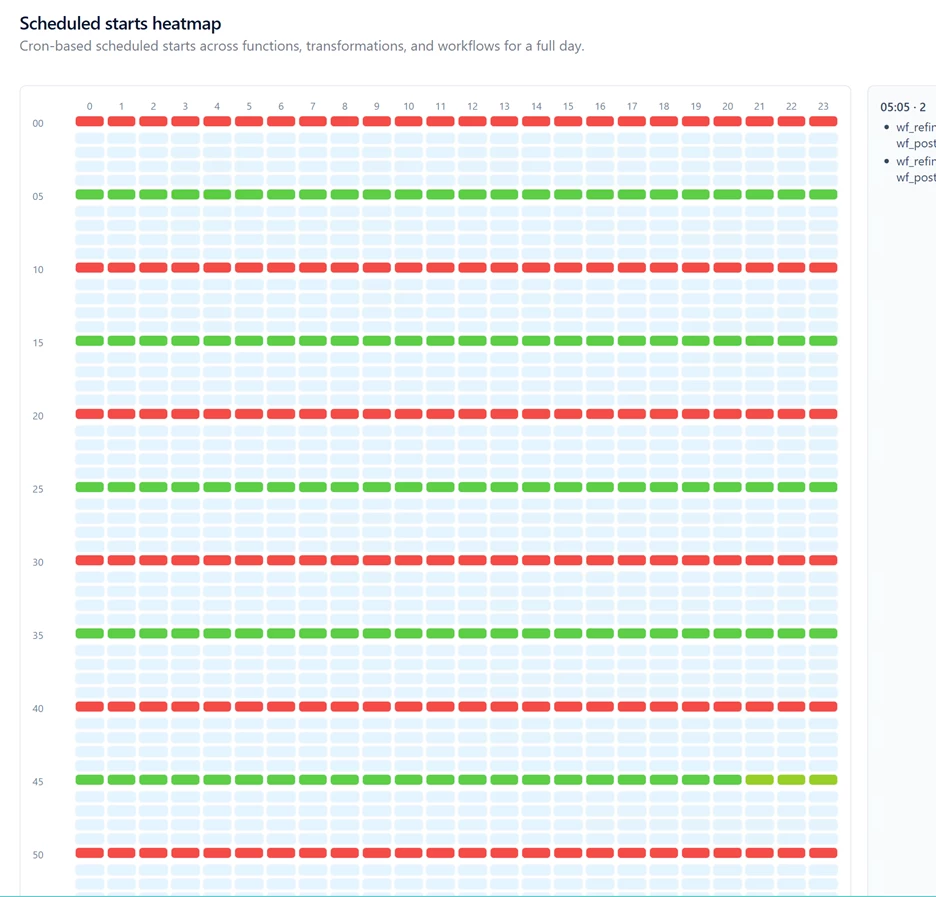
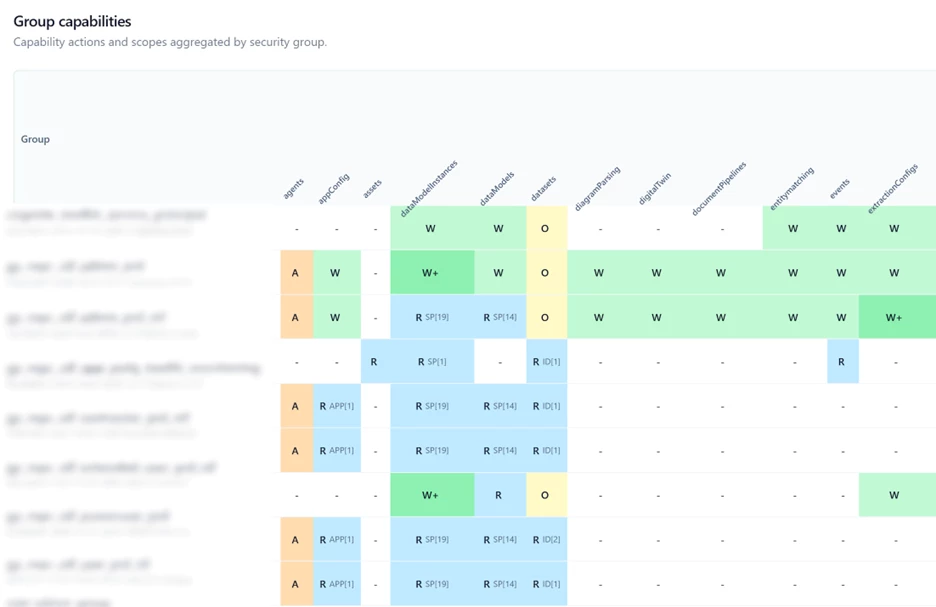
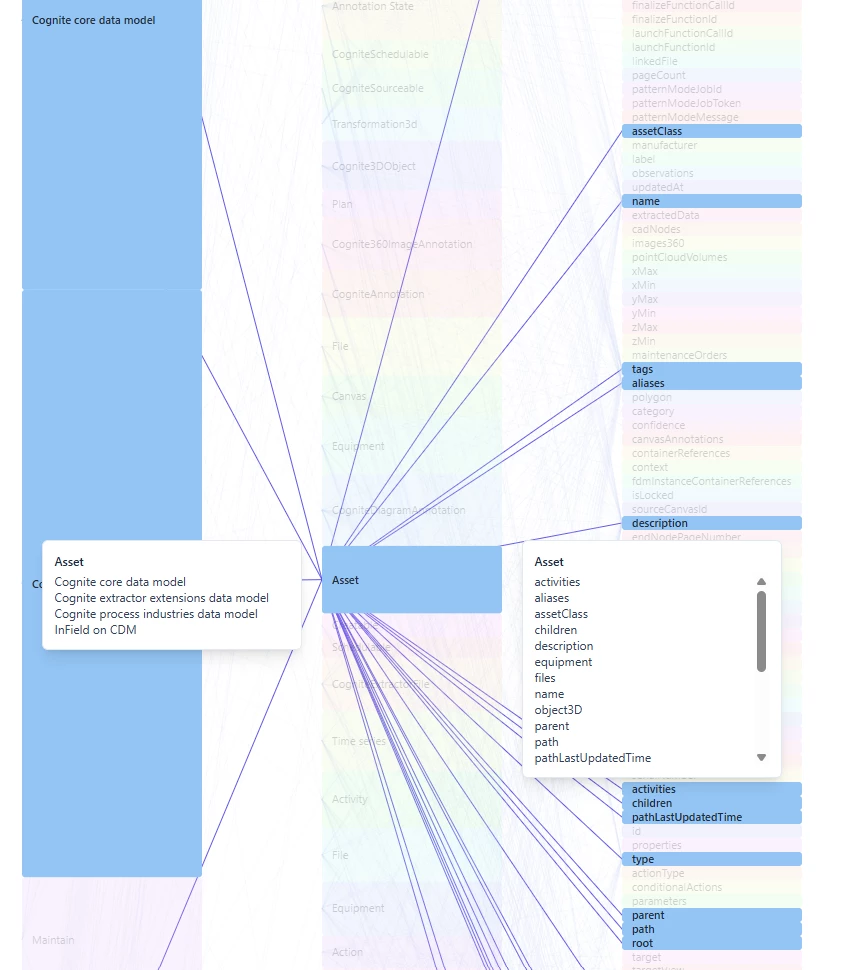
Example screen shots:
DISCLAIMER:
This tool is built on top of the Cognite Dune application framework, currently in beta. Once Dune is GA, this tool will be available within the CDF GUI itself. Currently, you can run it in standalone mode with a local proxy that injects client-credentials tokens, allowing technical people to run it on their own machine.
Installation
Installation can either be done by cloning the best practices github repo OR installing through Cognite Toolkit.
Prerequisites (for both cases)
- Node.js >= 22
Option 1: Clone from github
- Clone https://github.com/cognitedata/library
- Work directly on the folder modules/tools/apps/qualitizer
- Skip to the Usage chapter
Option 2: Download & Install locally (Cognite Toolkit)
Prerequisites
Before you start, ensure you have:
- A Cognite Toolkit project set up locally
- Your project contains the standard cdf.toml file
- Valid authentication to your target CDF environment
- Access to a CDF project and credentials
- cognite-toolkit >= 0.7.119
Access: You need appropriate permissions in your CDF project to enable feature flags. Contact your CDF administrator if you don't have access.
Step 1: Enable External Libraries
Edit your project’s cdf.toml and add:
[library.cognite]
url = "https://github.com/cognitedata/library/releases/download/latest/packages.zip"
checksum = "sha256:26c69a82e7a67706a17a36a36ed2ceecfb24aaf73e559a219a48081f62c59316"
This allows the Toolkit to retrieve official library packages, including the Quickstart DP package.
📝 Note: Replacing the Default Library
By default, a Cognite Toolkit project contains a [library.toolkit-data] section pointing to https://github.com/cognitedata/toolkit-data/....
These two library sections cannot coexist. To use this Deployment Pack, you must replace the toolkit-data section with library.cognite:
[library.toolkit-data] | [library.cognite] |
github.com/cognitedata/toolkit-data/... | github.com/cognitedata/library/... |
The library.cognite package includes all Deployment Packs developed by the Value Delivery Accelerator team (RMDM, RCA agents, Context Quality Dashboard, etc.).
Step 2: Add the Module
Run:
cdf modules add
⚠️ NOTE: if using
cdf modules init . --cleanThis command will overwrite existing modules. Commit changes before running, or use a fresh directory.
Step 4: Select the: CDF Qualitizer Application
From the menu, select:
- Tools and Accelerators: Tools and accelerators for CDF projects (select with “Enter”)
- CDF Qualitizer Application (Select with “Space bar”, confirm with “Enter”)
(NOTE: use Space bar to select module, confirm with Enter)
Step 3: Verify Folder Structure
  modules

     └── tools

         └── apps

             └── qualitizer
Would you like to make changes to the selection? choose no (N) if done
Usage:
Currently the tool requires you two run two separate processes on your machine. A web application that you can open in the browser, and a proxy that will handle the authentication against CDF.
Also, as it currently does not store any state, for some views it will only allow you to look at short time windows (1 hour). In the future the intention is to allow looking at days or weeks of data at once.
1. Setup .env file.
You can re-use the .env file from your toolkit setup with very small adjustments. You may be able to copy from the toolkit project root to the "qualitizer" folder and only need to add these two lines:
CDF_PROXY_URL=http://localhost:4243

CDF_BROWSER_URL=<my-project>.fusion.cognite.com
The complete list of env variables can be found in the README file included with the tool.
2. Start the proxy
cd <toolkit_folder>/modules/tools/apps/qualitizer/

npm install

npm run proxy
Leave this open, start the web server in a separate command window:
3.Start the web server
cd <toolkit_folder>/modules/tools/apps/qualitizer/

npm run standalone
Open your web browser to http://localhost:4242/