

 Check the
documentation
Check the
documentation Ask the
Community
Ask the
Community Take a look
at
Academy
Take a look
at
Academy Cognite
Status
Page
Cognite
Status
Page Contact
Cognite Support
Contact
Cognite Support


Overview
The Entity Matching deployment pack automates the contextualization of time series, 3D nodes, and other entity types to assets and tags in Cognite Data Fusion. It operates entirely on CDF Data Modeling objects and uses CDF Workflows to orchestrate two core functions: a metadata enrichment step that creates descriptions, tags, and aliases for entities and assets, followed by a matching step that uses that enriched metadata to automatically establish direct relationships between entities and assets. The pack ships production-tested code drawn from real customer implementations, supporting manual expert mappings, rule-based matching with regex, and AI-powered entity matching in a single unified pipeline.

Who is this for & when to use
Target personas: Delivery Engineer, Data Engineer, CDF Administrator on projects requiring time series or sensor data contextualization.
Use this pack when:
- You need to match time series or other entities to assets automatically, without building a custom matching pipeline from scratch.
- Your project combines data from multiple sources (e.g. SAP assets + OSIsoft/AVEVA PI time series) and requires relationship discovery across them.
- You need a combination of manual expert mappings, rule-based logic, and AI-powered matching in a single orchestrated workflow.
- You need incremental processing — only new or updated entities should be matched on each run.
- You want a scalable foundation proven for 10,000+ time series per batch in production environments.
When NOT to use this pack:
- If your assets and time series are already contextualized and you only need to maintain relationships — this pack is optimized for initial and incremental matching, not purely for maintenance.
- If your project requires document or P&ID annotation — use the P&ID Annotation deployment pack instead.
Why you need it
Building an entity matching solution from scratch is complex and time-consuming: designing multi-method matching logic, implementing metadata enrichment, managing batch retries, maintaining incremental state in RAW, and wiring CDF Functions into a Workflow. Getting matching accuracy high enough to be useful in production typically requires months of tuning.
This pack eliminates that effort by providing a production-validated pipeline that:
- Deploys in hours, not weeks — reuse proven, production-ready code across customer environments instead of building from scratch.
- Delivers measurably better performance — 35–55% faster execution and 40–60% improved matching accuracy compared to basic approaches, with 70%+ cache hit rate for metadata operations.
- Scales to enterprise volumes — processes 10,000+ time series per batch out of the box, with a modular architecture that supports parallel and async execution as volumes grow.
- Combines three matching methods — manual expert mappings, rule-based regex patterns, and AI-powered CDF entity matching are unified in a single workflow, each filling gaps the others cannot.
- Maintains 95%+ success rate — through retry logic, RAW-backed state management, and incremental processing that skips already-matched entities.
What's included
| Component | Description | Optional? |
|---|---|---|
| Metadata Update Function | Enriches time series and assets with descriptions, tags, and aliases. Uses optimized batch processing, NORSOK-based discipline classification, caching, and detailed performance benchmarking. | No |
| Entity Matching Function | Matches time series to assets using manual expert mappings, rule-based regex patterns, and AI-powered CDF entity matching. Includes retry logic, state management, and detailed metrics logging. | No |
| Workflow (EntityMatching) | Orchestrates the metadata update and entity matching functions in dependency order via CDF Workflows. | No |
| RAW state table | Stores processing state to enable incremental matching — entities already processed and unchanged are skipped on subsequent runs. | No |
upload_data/ directory | Initial data files (manual mappings, rule definitions, configuration tables) that must be uploaded to RAW after deployment using cdf data upload. | No |
Prerequisites
Verify all of the following before starting deployment:
- Cognite Toolkit version 0.7.33 or later is installed.
- A
cdf.tomlfile exists in your project root. If missing, runcdf initand select Create toml file (required). - The data plugin is enabled in
cdf.toml— required for thecdf data uploadstep after deployment:[plugins]
data = true - Authentication is configured and verified — run
cdf auth initandcdf auth verify. - Assets and time series (or other entities to match) are already ingested into the CDF data model.
- The CDF group used by Toolkit has the capabilities required to deploy Functions, Workflows, RAW databases, and Extraction Pipelines.
Deployment & installation
Choose your setup path
1. Existing Toolkit project
Use this path if you already have a local Toolkit project and only want to add the Entity Matching module.
a. Point cdf.toml at the Cognite Library
Long-time Toolkit users may still have [library.cognite] pointing at toolkit-data. Update it to the official library release:
[library.cognite]
url = "https://github.com/cognitedata/library/releases/download/latest/packages.zip"[library.toolkit-data] and [library.cognite] sections cannot coexist. Replace [library.toolkit-data] with [library.cognite]. The library.cognite package includes all Deployment Packs (RMDM, ISA Manufacturing, Entity Matching, etc.).b. Enable deployment packs in cdf.toml
In the same cdf.toml, ensure the alpha flag is set:
[alpha_flags]
deployment-pack = true
c. Add the Entity Matching module
From your project directory:
cdf modules add -d cdf_entity_matchingd. Update the configuration
Open config.dev.yaml and update at minimum:
project— your CDF project name.source_id— the source ID connected to the IDP application used by the matching function.- Instance and schema spaces — to match your data model structure.
See Configuration reference for all parameters.
e. Build and deploy
Run in order:
cdf build
cdf deploy --dry-run
cdf deploy
f. Upload initial data
After deployment, populate the RAW tables with the initial mapping and rule configuration files:
cdf data upload dir .\modules\accelerators\contextualization\cdf_entity_matching\upload_data\ -vcdf.toml (see Prerequisites) before running this command.After the upload, the Entity Matching workflow, functions, and RAW state tables are ready to run.
Verify folder structure
Your project should include:
modules/
└── accelerators/
    └── contextualization/
        └── cdf_entity_matching/
2. Starting from scratch
Use this path for a new Toolkit project with only the Entity Matching module.
a. Initialize the project
In an empty directory:
cdf modules init .b. Select Entity Matching in the interactive UI
In the terminal:
- Choose Contextualization (module templates for data contextualization).
- Use Space to select Contextualization Entity Matching.
- Press Enter to confirm.
Toolkit downloads the library, creates the module under modules/accelerators/contextualization/cdf_entity_matching/, and updates config.dev.yaml / config.prod.yaml.
c. Update the configuration
Open config.dev.yaml and update project, source_id, and spaces as described in step 1d above.
d. Build and deploy
cdf build
cdf deploy --dry-run
cdf deploy
e. Upload initial data
cdf data upload dir .\modules\accelerators\contextualization\cdf_entity_matching\upload_data\ -vAfter either path, the Entity Matching workflow, functions, and supporting resources are deployed and ready to run in your CDF environment.
Verification
After deployment, perform the following checks:
-
Verify that
cdf deploycompleted without errors and reported successful deployment of Functions, Workflows, and RAW resources. -
Verify that the
cdf data uploadcommand completed without errors and that theupload_datatables are visible in Integrate → Staging (RAW). -
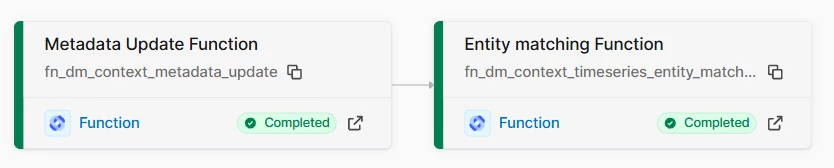
In Cognite Data Fusion, navigate to Integrate → Data Workflows and verify that the EntityMatching workflow is listed.
-
Trigger the workflow by clicking Run. Monitor execution and confirm both the metadata update step and the entity matching step complete without errors.
-
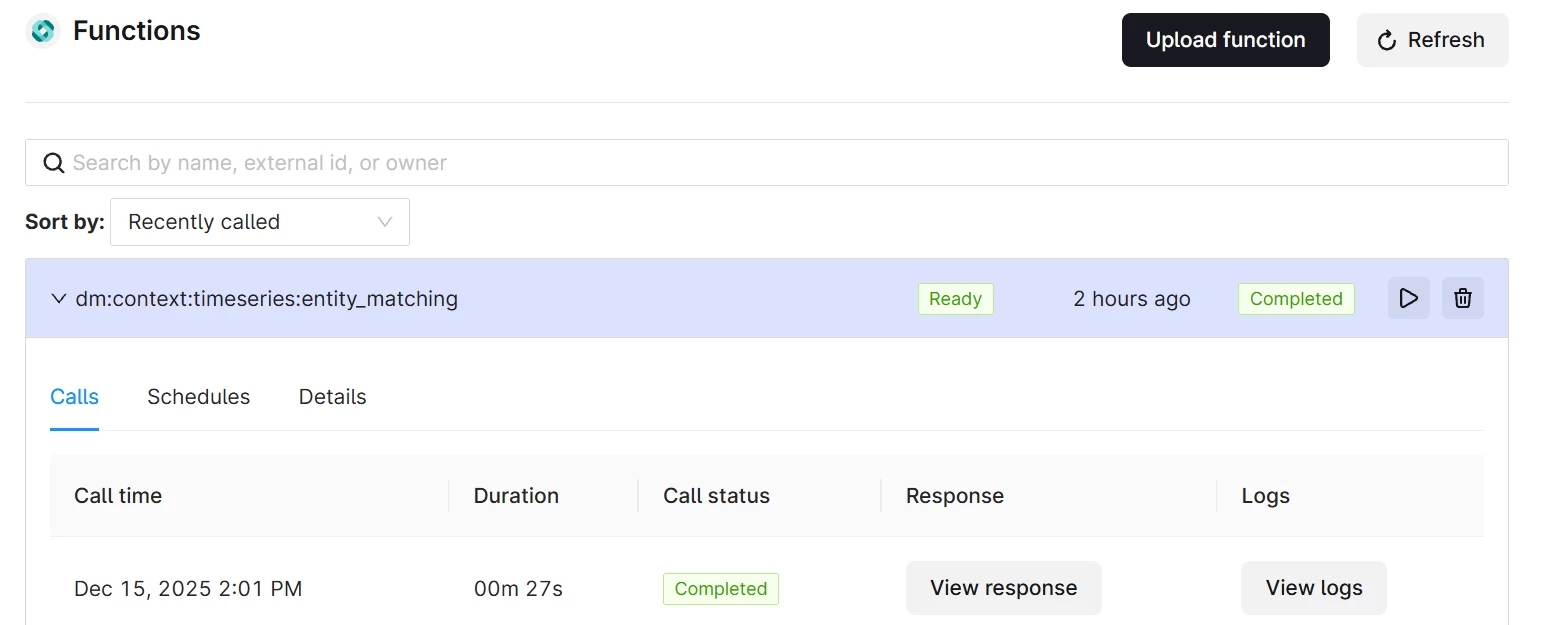
Navigate to Build Solutions → Functions and open each function. Click View logs and verify that entities were processed without errors, and review the matching metrics in the logs (match counts, cache hit rate, processing time).
-
Navigate to Integrate → Staging (RAW) and verify that the match result tables (good/bad matches) have been populated.
-
Use CDF Search or Data Modeling to verify that assets and time series are linked — confirm that direct relationships exist between matched entities.
Configuration reference
Parameters are set in config.dev.yaml at the project root. Update these before running cdf build.
| Parameter | Description | Default | Required? |
|---|---|---|---|
project | CDF project external ID to deploy to. | — | Yes |
source_id | Source ID connected to the IDP application used by the matching function. Must match functionClientId / functionClientSecret. | — | Yes |
| Instance space | CDF space where entity and asset instances are stored. | — | Yes |
| Schema space | CDF space containing the data model schema definitions. | — | Yes |
| External IDs / view versions | External IDs of the extended views or types the matching function targets, and their version identifiers. | — | Yes |
| Search properties | Properties on entities and assets used to compute match candidates. | — | Yes |
| Match threshold (auto-approval) | Confidence score above which a match is automatically approved without manual review. | — | No |
| Match threshold (suggestion) | Confidence score above which a match is surfaced as a suggestion for manual review. | — | No |
Architecture
The Entity Matching pack is structured as a CDF Toolkit accelerator module. The workflow runs two CDF Functions in sequence, using RAW-backed state to support incremental processing. Match results are written to RAW tables (good matches and bad matches) and as direct relationships in the CDF Data Modeling service.
modules/
└── accelerators/
    └── contextualization/
        └── cdf_entity_matching/
            ├── functions/
            │   ├── metadata_update/
            │   └── entity_matching/
            ├── workflows/
            │   └── EntityMatching
            ├── raw/
            │   └── (state table definition)
            └── upload_data/
                └── (manual mappings, rule definitions)
Matching pipeline
The workflow runs in two stages:
-
Metadata enrichment — the metadata update function adds descriptions, tags, and aliases to time series and assets. It applies NORSOK-based discipline classification, uses batched processing with caching (70%+ cache hit rate), and writes enriched metadata back to the data model. This stage improves the signal quality available to the matching stage.
-
Entity matching — the matching function reads enriched metadata and applies three matching methods in priority order:
- Manual expert mappings — predefined relationships loaded from the
upload_data/tables, used for complex or domain-specific cases where automated methods are unreliable. - Rule-based matching — configurable regex patterns and business logic that codify known naming conventions and structural rules.
- AI-powered entity matching — CDF’s built-in ML capabilities for pattern discovery, covering cases not handled by rules.
Matches above the auto-approval threshold are written as direct relationships. Matches above the suggestion threshold are surfaced for manual review. All match records (good and bad) are written to RAW for audit and reprocessing.
- Manual expert mappings — predefined relationships loaded from the
Incremental processing and state management
Processing state is maintained in a RAW database. On each run, only new or updated entities are processed — previously matched entities are skipped unless their metadata has changed. To reprocess all entities, clear the state table or trigger the workflow in ALL mode.
Resilience
The matching function processes entities in batches with retry logic for transient failures. Failed individual entities are logged and skipped without blocking the rest of the run. External IDs prevent duplicate relationship creation across runs.
Troubleshooting
| Symptom | Likely cause | Resolution |
|---|---|---|
| Workflow fails with access error | The CDF function's IDP application is not connected to the correct source ID. | Verify that source_id in config.dev.yaml matches the application connected to functionClientId / functionClientSecret. See docs.cognite.com/cdf/access. |
cdf data upload fails with "data plugin not enabled" | [plugins] data = true is missing from cdf.toml. | Add data = true under [plugins] in cdf.toml and retry the upload command. |
| No matches created after workflow run | Upload data tables are missing, or search properties do not align with the data model. | Verify that cdf data upload completed successfully and the upload_data tables are visible in RAW. Check that search properties in the configuration match the actual property names in your data model. |
| Duplicate relationships on re-run | Match thresholds were updated but old relationships were not cleaned up first. | Clean up existing matches created by this process before re-running with updated thresholds. Manually created relationships are preserved. |
| Workflow processes all entities on every run | RAW state table is missing or was cleared. | Verify that the RAW state table was created during deployment. Clearing the table forces a full reprocessing run — this is expected behavior for ALL mode. |
| Low match rate despite correct configuration | Metadata enrichment step did not complete successfully, or aliases are not being generated correctly. | Check the metadata update function logs for errors. Verify that the enriched aliases and descriptions are present in the data model before the matching step runs. |
cdf deploy fails with insufficient permissions | Toolkit service account is missing required CDF capabilities. | Add capabilities for Functions, Workflows, RAW, and Extraction Pipelines to the CDF group used by Toolkit. |
For issues not covered here, contact your Cognite support team or post in #topic-deployment-packs on Slack.
Support & ownership
| Field | Details |
|---|---|
| Team | Cognite Delivery Team |
| Support channel | #topic-deployment-packs on Slack |
| Documentation | docs.cognite.com |
| Version | 1.0.0 |
| Last updated | 2026 |
