

 Check the
documentation
Check the
documentation Ask the
Community
Ask the
Community Take a look
at
Academy
Take a look
at
Academy Cognite
Status
Page
Cognite
Status
Page Contact
Cognite Support
Contact
Cognite Support


Overview
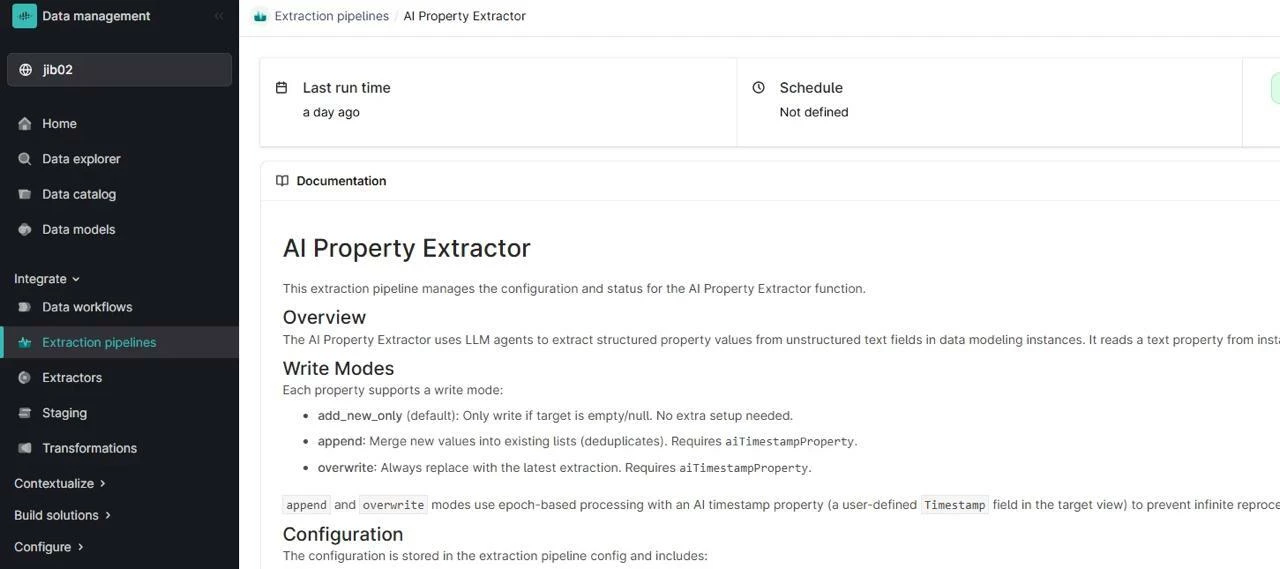
The Atlas AI Property Extractor is an ingestion module that uses Atlas AI agents to automatically extract structured properties — equipment tags, aliases, metadata, and relationships — from unstructured industrial documents such as engineering reports, maintenance records, and technical manuals. Once extracted, the properties are written directly into an existing CDF data model view, turning static documentation into a queryable knowledge graph without manual entry. The module runs on a configurable schedule and supports both append mode (accumulate values over time) and overwrite mode (re-extract properties after an LLM upgrade).
Who is this for & when to use
Target personas: Delivery Engineer, Data Engineer, or CDF Administrator working on a project where Atlas AI is enabled and unstructured data needs to populate a CDF data model.
Use this pack when:
- You have documents, notifications, or free-text fields in CDF that contain technical properties (discipline, priority, category, tags) you want extracted and stored as structured data model properties.
- You want to enrich an existing CDF view with AI-generated summaries or derived metadata without building a custom extraction pipeline.
- You need to accumulate tags or keywords from multiple document sources over time (append mode).
- You have upgraded the underlying LLM and want to re-extract properties from all records to refresh outputs (overwrite mode).
- You are building an Atlas AI workspace and need a structured data foundation for agentic reasoning and industrial search.
When NOT to use this pack:
- If your CDF project does not have Atlas AI / Agents capability enabled — this module requires Atlas AI agents and cannot run without them.
- If you do not yet have a target CDF view set up — the module writes into an existing view and will not create one for you. Deploy your data model first.
- If you need rule-based or SQL-driven entity matching rather than LLM extraction — use the Entity Matching or Connection SQL modules instead.
Why you need it
Industrial projects accumulate large volumes of documents — notifications, reports, manuals — where critical metadata lives as free text. Extracting that metadata manually is slow, inconsistent, and doesn't scale across thousands of records.
This module eliminates that effort by:
- Automating property extraction at scale — Atlas AI agents read each document and populate structured view properties in one scheduled run, with no manual tagging required.
- Keeping extraction efficient with deduplication — the
aiTimestampPropertytracks which records have already been processed, so only new or updated records are re-extracted on each run. - Supporting two write modes — append mode accumulates values (useful for tag lists that grow over time) and overwrite mode replaces all extracted values (useful after LLM upgrades).
- Fitting into existing data models — the module writes into any CDF view you specify, with no structural changes required to the target data model.
- Enabling agentic reasoning — once properties are extracted and stored as structured data, Atlas AI agents can query, reason over, and surface them through industrial search and cause-map workflows.
What's included
| Component | Description | Optional? |
|---|---|---|
| AI Property Extractor function | CDF Function that invokes Atlas AI agents to read source view instances and extract configured properties into the target view. | No |
| CDF Workflow | Scheduled workflow that triggers the extraction function on a configurable cadence. Can also be triggered manually for testing. | No |
| Spaces, containers, and views | Data model resources created or updated by the module to support the extraction pipeline. | No |
| Dataset | CDF dataset for lineage tracking of extracted properties. | No |
| RAW database and transformations | Intermediate RAW resources and transformations used by the extraction pipeline. | No |
Prerequisites
Verify all of the following before starting deployment:
- Cognite Toolkit version 0.7.33 or later is installed. Follow the setup instructions.
- A
cdf.tomlfile exists in your project root. If missing, runcdf initand select Create toml file (required). - Authentication is configured and verified — run
cdf auth initandcdf auth verifyusing a local.envfile. See the Toolkit authentication docs. - Your CDF project has Atlas AI Agents enabled. Contact your CDF administrator if you are unsure.
- A target CDF view already exists with the properties you want the extractor to populate. The module writes into an existing view — it does not create one.
- The CDF group used by Toolkit has the following capabilities:
spaces:write,datamodels:write,datasets:write,rawdb:write,functions:write,workflows:write.
Deployment & installation
Choose your setup path
1. Existing Toolkit project
Use this path if you already have a local Toolkit project and only want to add the Atlas AI Property Extractor.
a. Point cdf.toml at the Cognite Library
Long-time Toolkit users may still have [library.cognite] pointing at toolkit-data. Update it to the official library release:
[library.cognite]
url = "https://github.com/cognitedata/library/releases/download/latest/packages.zip"[library.toolkit-data] and [library.cognite] sections cannot coexist. Replace [library.toolkit-data] with [library.cognite].b. Enable deployment packs in cdf.toml
[alpha_flags]
deployment-pack = true
c. Add the AI Property Extractor module
From your project directory:
cdf modules add -d ai_extractord. Update the configuration
Open config.dev.yaml and set the source view, target view, and aiTimestampProperty. See Configuration reference for all parameters.
e. Build and deploy
cdf build
cdf deploy --dry-run
cdf deploy
Verify folder structure
modules/
└── atlas_ai/
    └── ai_extractor/
2. Starting from scratch
Use this path for a new Toolkit project.
a. Initialize the project
In an empty directory:
cdf modules init .b. Select AI Property Extractor in the interactive UI
In the terminal:
- Choose Atlas AI Deployment Pack (deploy all Atlas AI modules in one package).
- Use Space to select AI Property Extractor Function.
- Press Enter to confirm.
Toolkit downloads the library, creates the module under modules/atlas_ai/ai_extractor/, and updates config.dev.yaml / config.prod.yaml.
c. Update the configuration
Open config.dev.yaml and set the source view, target view, and aiTimestampProperty (see step 1d above).
d. Build and deploy
cdf build
cdf deploy --dry-run
cdf deploy
After either path, the AI Property Extractor function, workflow, and supporting resources are deployed to your CDF environment.
Verification
After deployment, perform the following checks:
-
Verify that
cdf deploycompleted without errors and reported successful creation of the function, workflow, dataset, and RAW resources. -
In Cognite Data Fusion, navigate to Functions and confirm that the AI Property Extractor function is listed and shows a Ready status.
-
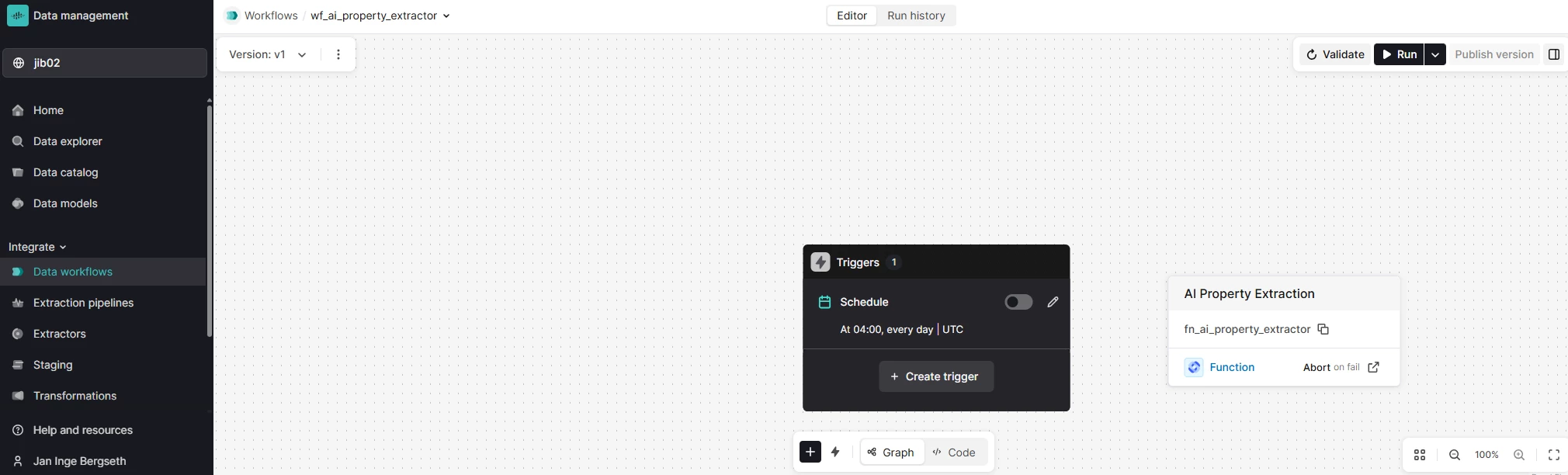
Navigate to Data Workflows and confirm that the extraction workflow is registered and its schedule is active.
-
Trigger the workflow manually from the Data Workflows UI to run an initial extraction test. Monitor the run until it completes.
-
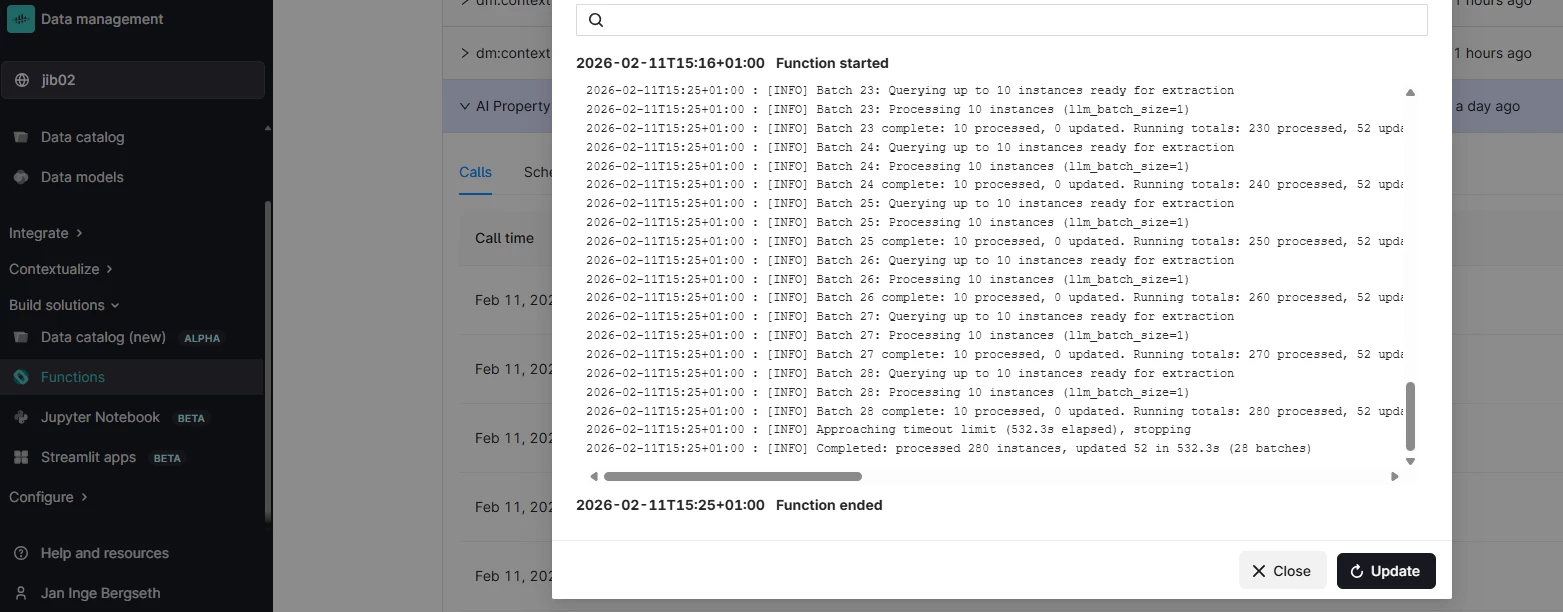
Open Functions → [AI Property Extractor function] → Logs and confirm that records were processed and properties were written without errors.
-
Navigate to the target view in Data Modeling and verify that the extracted properties appear on the expected instances.
The deployment is successful when the function is ready, the workflow triggers without errors, and extracted properties are visible in the target view.
Configuration reference
Configuration is set in config.dev.yaml and applied to the AI Property Extractor pipeline. Full parameter documentation is available in the module README.
| Parameter | Description | Default | Required? |
|---|---|---|---|
view | External ID of the source view containing the instances from which properties are extracted (e.g. the view holding notification descriptions or document text). | — | Yes |
targetView | External ID of the target view where extracted properties are written. Can be the same as view. Required when using append or overwrite mode. | — | Yes |
aiTimestampProperty | Property name on the target view used to track when each instance was last processed. Prevents re-extraction of already-processed records on subsequent runs. | — | Yes |
extractionMode | append — accumulates extracted values over time (e.g. growing tag lists). overwrite — replaces all extracted values on each run (e.g. after an LLM upgrade). | append | No |
schedule | Cron expression for the extraction workflow schedule. | Daily | No |
.env file, not hardcoded in config.dev.yaml. Review cron expressions before deploying — placeholder schedules may be set to dates like February 29 that never fire.Architecture
The AI Property Extractor is deployed as a Toolkit module under modules/atlas_ai/ai_extractor/. It provisions a CDF Function, a scheduled workflow, and the supporting RAW and data model resources needed for extraction and lineage tracking.
atlas_ai/
└── ai_extractor/
    ├── functions/
    │   └── ai_property_extractor/   (function code)
    ├── transformations/
    ├── workflows/
    │   └── ai_extractor.workflow.yaml
    ├── data_sets/
    ├── default.config.yaml
    └── module.toml
Extraction pipeline
On each scheduled (or manual) run, the workflow executes the following steps:
- Fetch unprocessed instances — query the source view for instances where
aiTimestampPropertyis null or older than the last run, ensuring only new or updated records are processed. - Invoke Atlas AI agents — for each instance, the Atlas AI agent reads the configured text properties and extracts the defined structured properties using the configured LLM.
- Write to target view — extracted properties are upserted into the target view. In append mode, new values are added to existing lists; in overwrite mode, all extracted properties are replaced.
- Update timestamp —
aiTimestampPropertyis set to the current time on each processed instance, marking it as complete for future runs.
Operation modes
| Mode | Behavior | When to use |
|---|---|---|
append | Adds extracted values to existing values without removing previous entries. | Accumulating tags, keywords, or aliases that grow over time as new documents are processed. |
overwrite | Replaces all previously extracted values with the new extraction results. | Refreshing all records after an LLM upgrade, or correcting previously extracted values. |
Troubleshooting
| Symptom | Likely cause | Resolution |
|---|---|---|
cdf auth verify fails with 401 Unauthorized | Missing or incorrect credentials in .env file. | Run cdf auth init, re-enter credentials, then re-run cdf auth verify. |
Module not found during cdf modules add | [library.toolkit-data] is still present alongside [library.cognite] in cdf.toml. | The two sections cannot coexist. Replace [library.toolkit-data] with [library.cognite]. |
Function shows Failed status after deployment | Missing capabilities on the Toolkit service account, or Atlas AI Agents not enabled on the project. | Verify that functions:write and workflows:write are added to the Toolkit CDF group, and confirm Atlas AI Agents are enabled with your CDF administrator. |
| Workflow runs but no properties are written to the target view | view or targetView is misconfigured — pointing to a non-existent or wrong view. | Confirm the external IDs in config.dev.yaml match the views in your CDF project. Check the function log for the exact error. |
| Same records are re-extracted on every run | aiTimestampProperty is not set, or the property name does not match an actual property on the target view. | Verify aiTimestampProperty in config.dev.yaml exactly matches the property name on the target view. The property must be writable. |
| Extracted values appear in append mode but are never cleared after an LLM upgrade | Module is running in append mode instead of overwrite. | Switch extractionMode to overwrite in config.dev.yaml, redeploy, and trigger the workflow manually to refresh all records. |
| Workflow schedule never fires | Cron expression is set to an invalid or unreachable date (e.g. February 29 in a non-leap year). | Review the schedule value in config.dev.yaml and update to a valid cron expression. |
For issues not covered here, check the module README and TESTING.md, or post in #topic-deployment-packs on Slack.
Support & ownership
| Field | Details |
|---|---|
| Team | Cognite Delivery Team |
| Support channel | #topic-deployment-packs on Slack |
| Documentation | docs.cognite.com |
| Version | 1.0.0 |
| Last updated | 2026 |
