

 Check the
documentation
Check the
documentation Ask the
Community
Ask the
Community Take a look
at
Academy
Take a look
at
Academy Cognite
Status
Page
Cognite
Status
Page Contact
Cognite Support
Contact
Cognite Support

Bullet-proofing Streamlit Apps in Cognite Data Fusion
From Prototype to Production: Developing and Deploying Robust Streamlit Apps in Cognite Data Fusion
Streamlit dashboards and applications can easily be built and deployed in Cognite Data Fusion using the built-in, browser-based code editor. It gives instant previews and is easy to prototype with, especially when using Copilot and starting with available templates.
Once a Streamlit app or dashboard is starting to get traction and users depend on it in their everyday work, it is time to start thinking about how you manage changes and how you make sure those changes don’t introduce bugs or have unwanted side effects. We want to be able to make improvements, not frustrate users or make them loose trust in the application or the data.
Here’s how you can introduce a robust process for developing, testing and deploying changes using Visual Studio Code and Streamlit on your local computer and deploy to Cognite Data Fusion with the Cognite Toolkit.
Local setup
Our goal is to detect errors and issues as early as possible, and certainly before the Streamlit app users do. We want to load up with the best available tools to do so, and we want quick and easy ways to verify that our code does what we want. To make the feedback loop as snug as possible, we can develop and verify locally before we deploy changes to the cloud environment (Cognite Data Fusion).The local development environment usually consists of a desktop IDE like Visual Studio Code or PyCharm, extended with tools from the Python ecosystem like mypy, ruff, black and pytest to help developers maintain high quality code, poetry or uv for dependency management and Git for version control. Your milage may vary.
We strongly recommend setting quality policies as pre-commit hooks and distributing them in the code repository to make sure all contributors follow the same guidelines.
Toolkit file structure
In the Cognite Toolkit, a Streamlit app is a resource type of its own. This means that you can add a streamlit folder to a module and have it deployed by the toolkit command cdf deploy. If you are unfamiliar with how to set up Toolkit, see the guide at the Cognite Documentation.
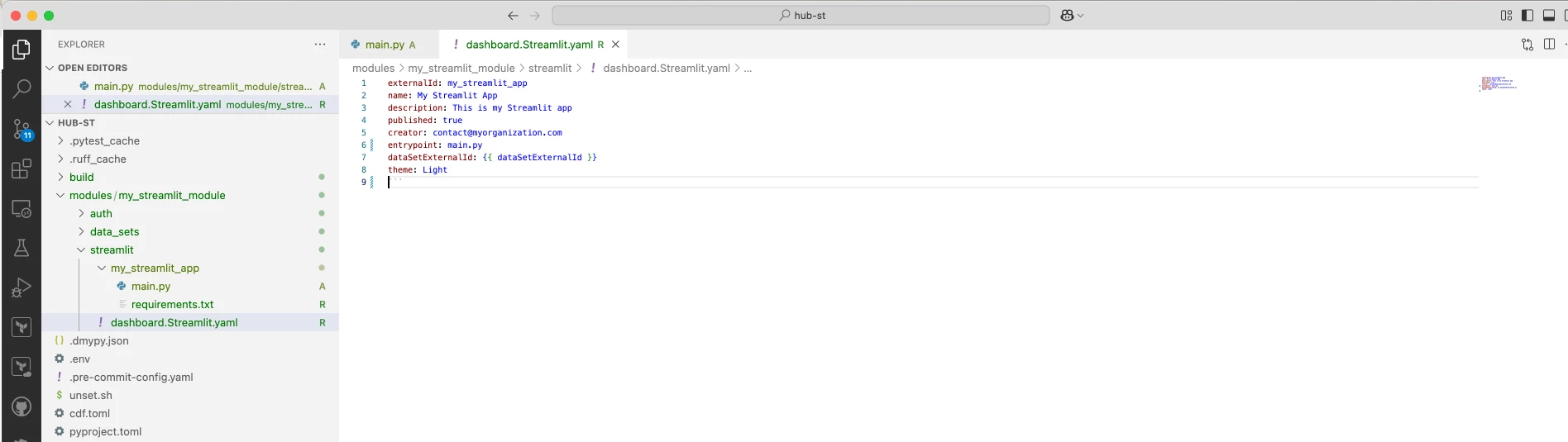
The screenshots show the two most essential files, the yaml manifest and the main code file in the required structure. Note that this is a naive example, in real-life the my_streamlit_app may contain several subfolders with data access and processing logic.
Local development
We want to be able to run our Streamlit app locally. Some IDEs have plugins for this purpose. In this guide we are running Streamlit from the terminal. We install it like this:
pip install streamlit
streamlit hello
This should open Streamlit in a new browser window to verify the installation.
Now we are able to test our app on our local machine by pointing the streamlit command to our entry point:

This will open your default browser at localhost:8501 and show your app:
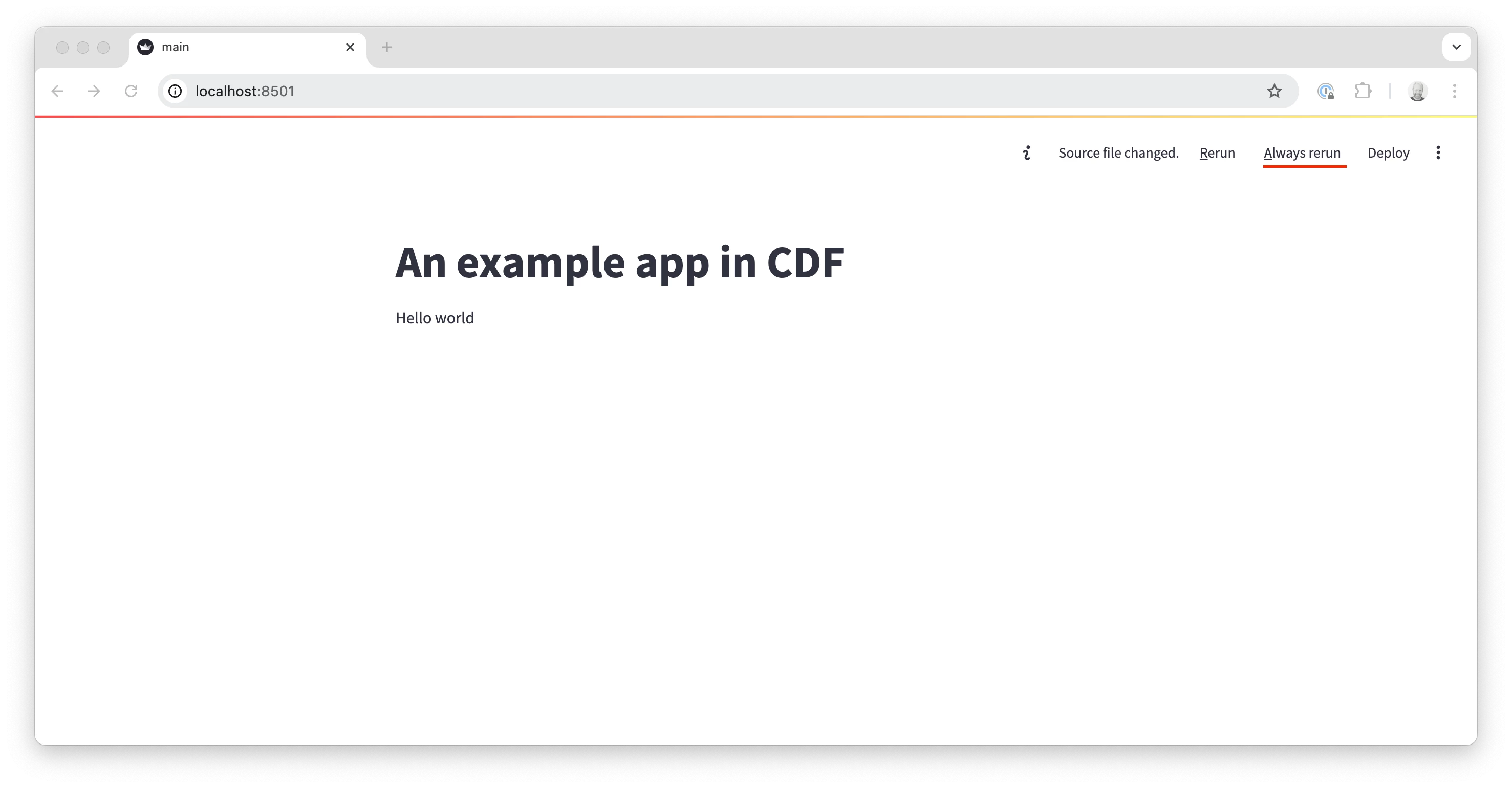
If you keep this window open, it will detect when you make code changes. If you click “always rerun” it will update automatically when you save code changes, and you can iterate as long as you need.
Deployment
Before deploying, make sure all linting, static code checking and automated tests go through. Commit the code to Git.
Note that all dependencies required for the app to run need to be added to the requirements.txt file in the app folder:
pyodide-http>=0.2.1
cognite-sdk>=7.64.11
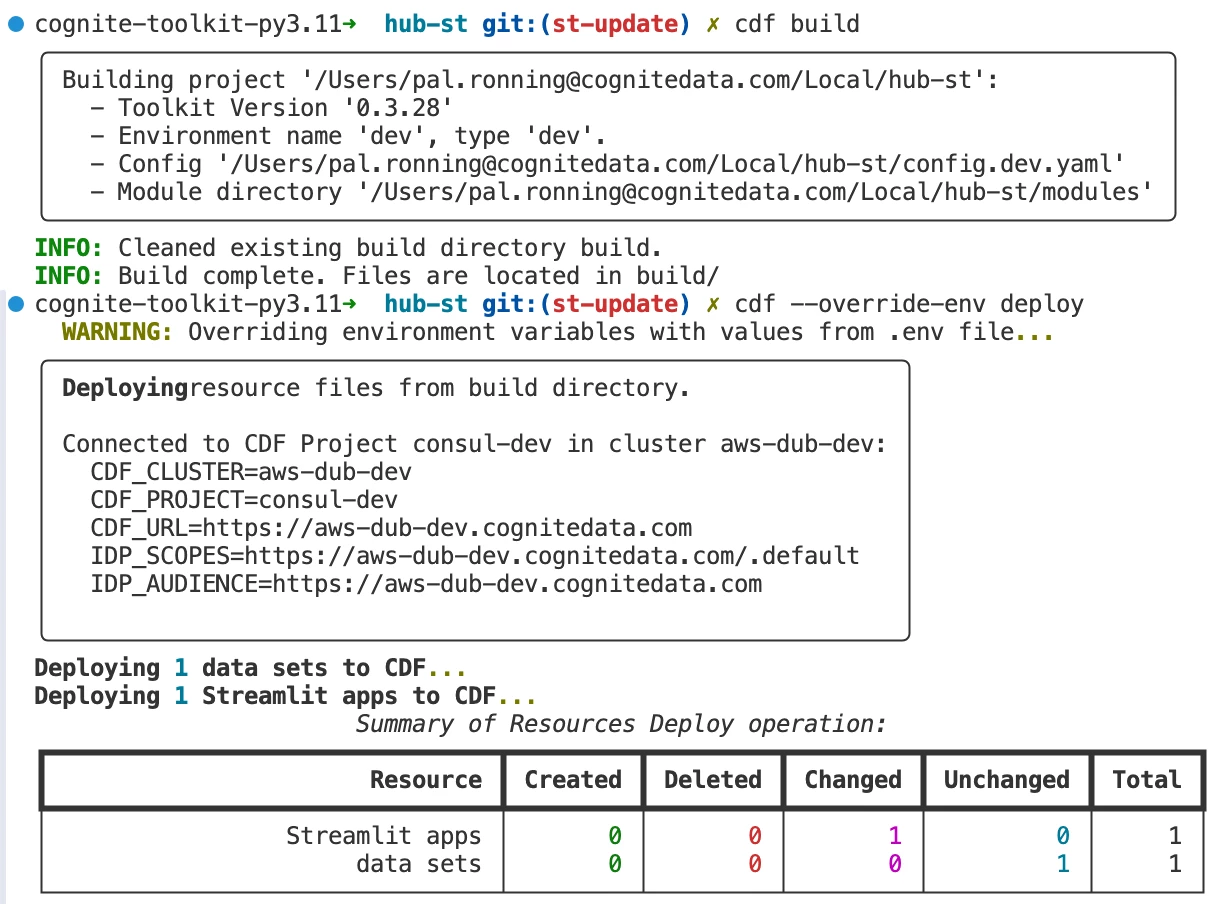
Then, build and deploy as usual:
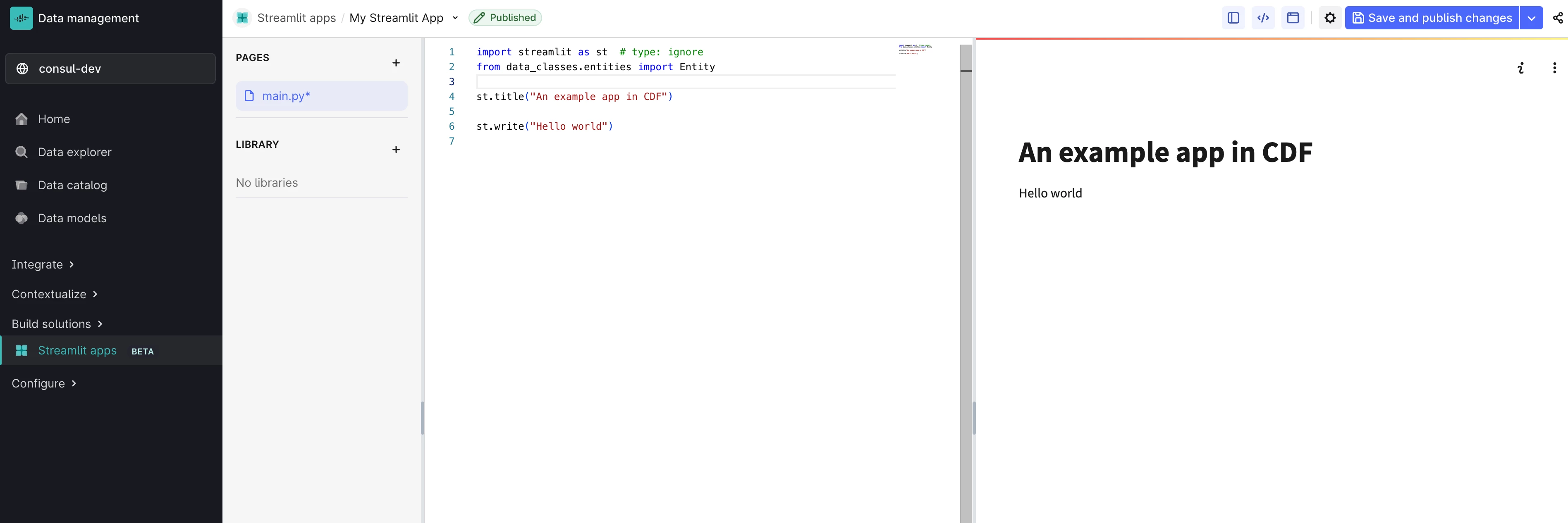
Log in to Fusion and verify that the app works as expected:
That’s it! You are now set up to use a local IDE and tools to ensure the quality of the code - and to store the source code in Git.
