

 Check the
documentation
Check the
documentation Ask the
Community
Ask the
Community Take a look
at
Academy
Take a look
at
Academy Cognite
Status
Page
Cognite
Status
Page Contact
Cognite Support
Contact
Cognite Support


How to: File Upload in Search
Have you seen it? In our last release, we added support for File Upload through the Search application. The goal is to remove a hindrance to daily use by allowing single-file uploads for non-technical users of Cognite Data Fusion.
While most data in Cognite Data Fusion is ingested through structured pipelines, there was a need to enable individual Subject Matter Experts (SMEs) to upload data directly. This allows non-technical users, such as Reliability Engineers, to add valuable information for future reference.
As of earlier this year, we have support for file uploads through the Search application and for using Search as a resource selector (e.g., in Canvas or Charts). This is available for Data Modeling Files.
We ensured to add governance around file uploads:
- Only available through use of Location(s)
- The Location needs to have File Upload
spaceadded to the Location config
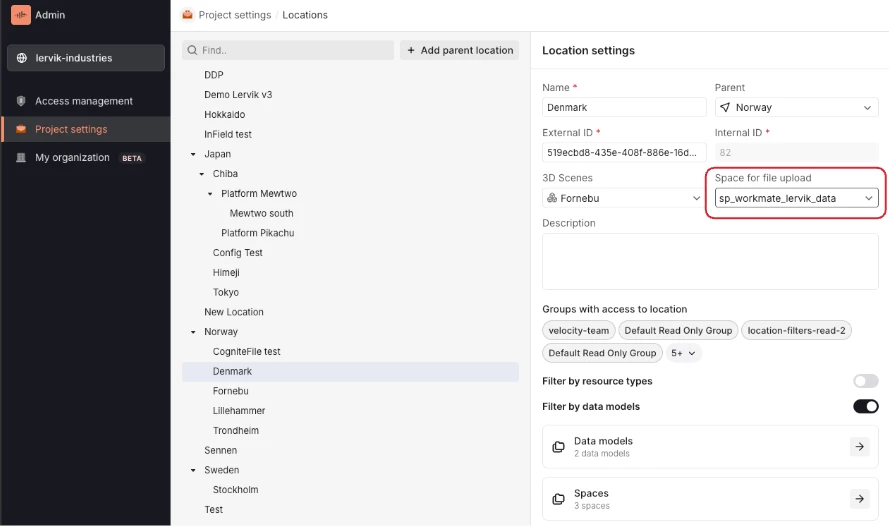
- The individual user will see the File Upload option for Files if the location they have selected has a File Upload space and they themselves have permission to write data to that space
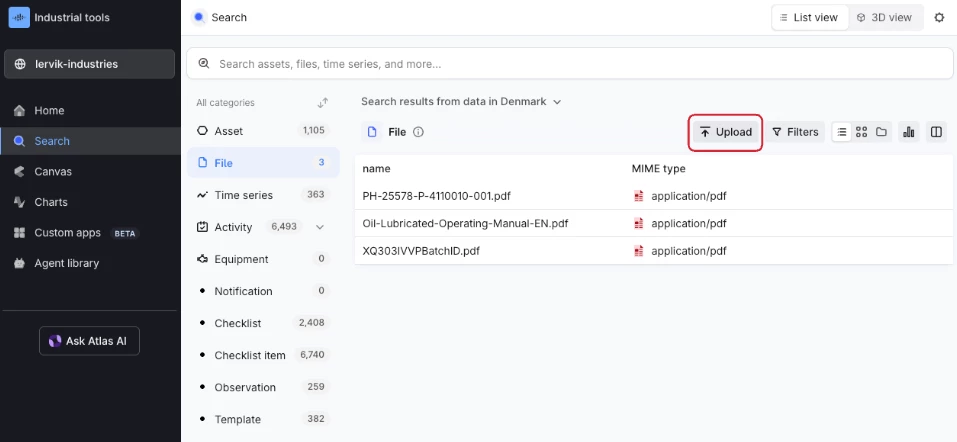
- The individual user will see Files uploaded by other users if they have permission to read from the File Upload space
We covered this feature in the March’26 release notes:
Upload files directly in Search. The upload option is available after your admin configures the space for file uploads in Admin > Project settings > Locations > Configure > Space for file upload. Only one space can be set per location. Once you upload files, they may take a moment to appear. Upload is available only for data modeling views.
Let me know if you have questions regarding File Upload - we would love to see it in use!
Best,
Sofie, Product Manager
