Gathering Interest

Canvas Mark-Up Capabilities and Enhancement

Related products:Industrial Canvas
  • July 8, 2025
  • 9 replies
  • 104 views

Within the Canvas Module of CDF, consider adding enhanced mark-up capabilities.

Enhancement Considerations:

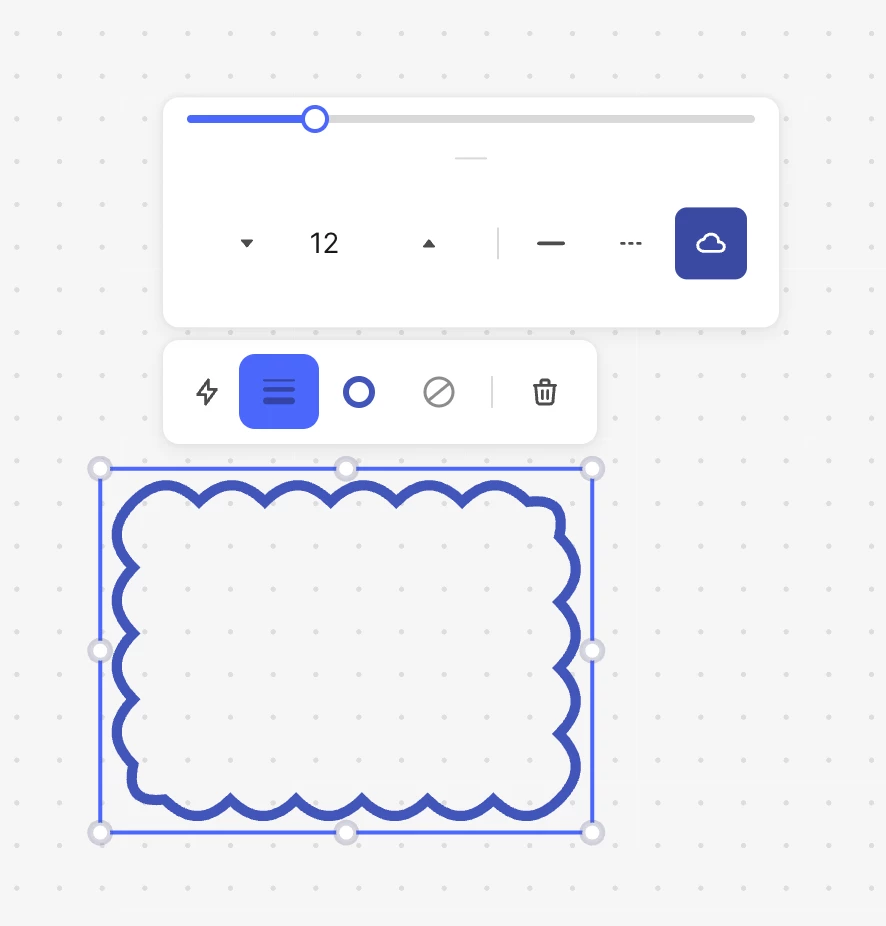
  • Add Cloud polygon shape for revision indications
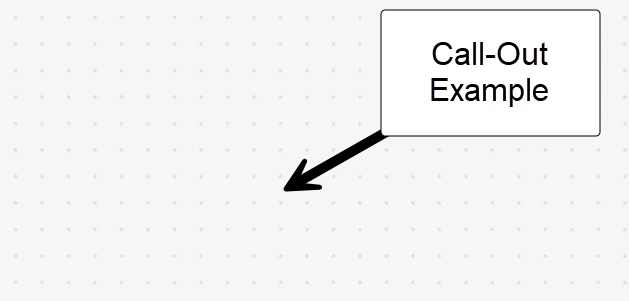
  • Add Call-Out w/ Text Option (Box with Arrow)
  • Opacity Option for Line and Shape Objects
  • Ability to add / organize user-created stamps (toolchest)
  • Ability to create layers for mark-up objects (Turn On / Off)

9 replies

Andreea Oprea
Seasoned Practitioner
Forum|alt.badge.img
  • Seasoned Practitioner
  • July 24, 2025

Hi ​@tddahnke,

Thank you for your feedback! 

Could you please share a bit more detail and some examples on the above? Especially for:

  • Add Call-Out w/ Text Option (Box with Arrow)
  • Ability to create layers for mark-up objects (Turn On / Off)

     

As for :

  •  Cloud shape - is already available in the product when changing the line type. We want to make this shape more visible, so will soon move it as a stand alone shape next to the rest of them.  
  • Ability to add / organize user-created stamps (toolchest) - atm we don’t have a way for the user to add new stamps to the library. But we can do this for you. We just need the list of stamps. 

    Thank you,
    Andreea.  

  • Author
  • Committed
  • July 25, 2025

The layer functionality would be similar to annotation on/off button.  An example would be a P&ID marked up with connectors and stamps, those connectors would be able to turn on and off.  The layers would be able to be named with toggles on/off.


Please see the call-out option below:

The arrow would be adjustable with a built-in text box inside the shape.


  • Author
  • Committed
  • July 25, 2025

Great progress on the other features, is it possible to add the cloud feature to all shapes (including path).  If the cloud feature is going to be its standalone shape it would make sense to give the circle, rectangle, and path option. 


The cloud feature on the rectangle is a great add.


  • Author
  • Committed
  • August 6, 2025

@Andreea Oprea 

You mentioned adding stamps, we have autocad and bluebeam objects.  Can you take either one?


Andreea Oprea
Seasoned Practitioner
Forum|alt.badge.img
  • Seasoned Practitioner
  • August 7, 2025

Hi ​@tddahnke,

For now, we can’t import them directly in this format. Can you convert them into a PDF format? 
We are planning to improve and streamline this process, on the roadmap for H2’26. 

Thank you,
Andreea. 


Andreea Oprea
Seasoned Practitioner
Forum|alt.badge.img
  • Seasoned Practitioner
  • August 28, 2025

Hello ​@tddahnke,

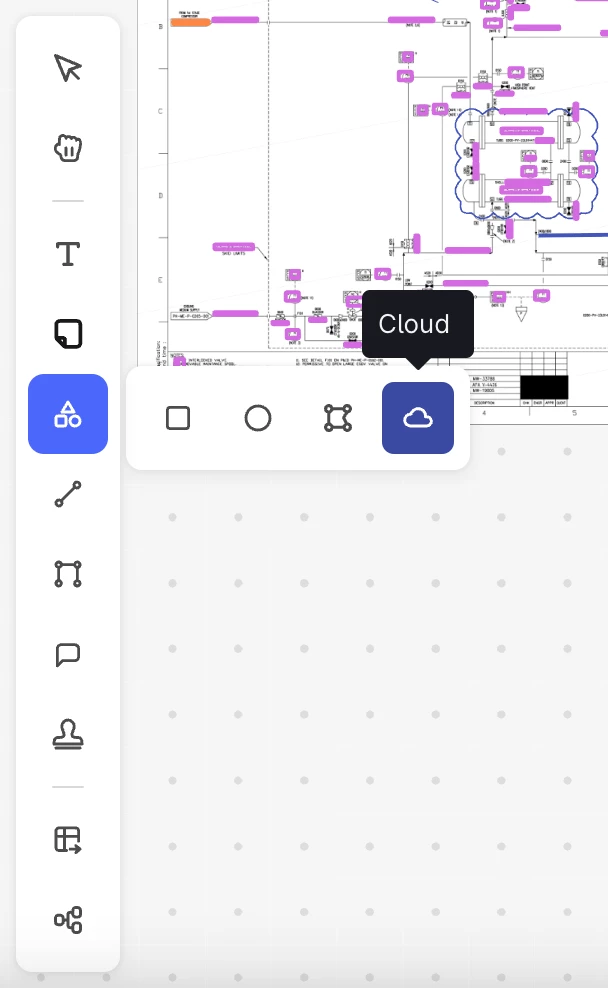
As I mentioned previously, we have moved the cloud shape to a more visible place. 

Now the cloud shape can be accessed here:


 Thank you,
Andreea.


  • Author
  • Committed
  • February 24, 2026

What is the status on stamp integration / pre-set opacity settings (highlighter tool) / layers / text connected to shape?


Andreea Oprea
Seasoned Practitioner
Forum|alt.badge.img
  • Seasoned Practitioner
  • February 25, 2026

Hi ​@tddahnke,

Uploading the new stamp library will be taken after solving the issue with the blurry annotations on top of P&IDs when downloading as PDF. 
The highlighter tool is part of our Q3 roadmap. The rest of the requests are planned for Q4’26 and H1’27. 

Thank you,
Andreea.


Forum|alt.badge.img

Hi ​@tddahnke - 


I’m a heavy user for Canvas and we leverage an opacity option that exists already in Canvas for our mark-ups. 


This has been critical for isolation planning, redlining/greenlining (ready for start-up) activities, and our engineering/maintenance packages/risk-mitigation plans. 

  • @tddahnke let’s connect on how your team is using it so we can drive more value & use-cases


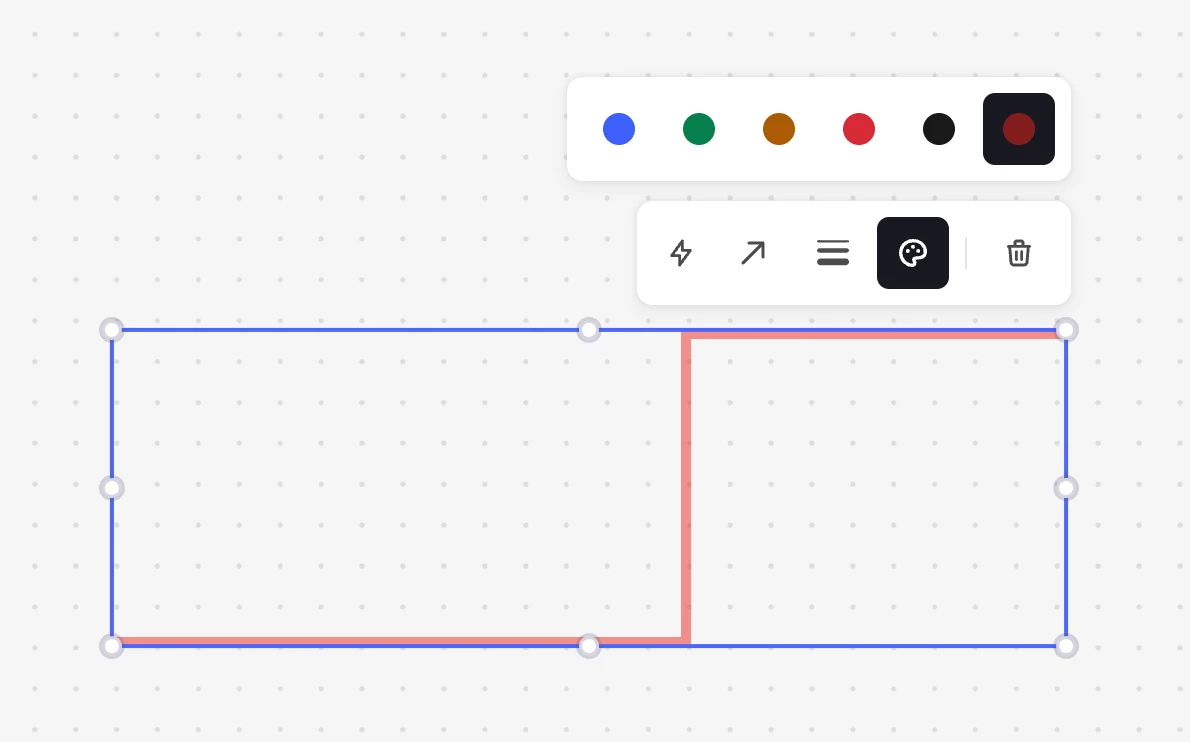
I recommend setting the line opacity & color on the first line (then the rest should take the same settings without changing them again). See the screenshot below for the one that we use. 


Steps to enable / use:

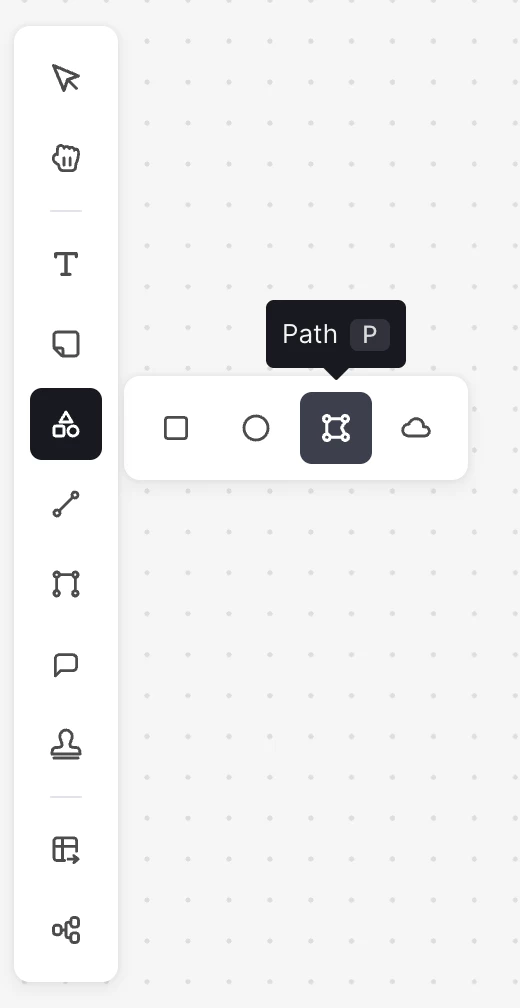
  1. Path object is my favorite (p on keyboard, select the shapes then third option)
    1. Draw the line as usual -- Pro tip: use the shift key to make orthogonal lines (follows P&IDs really well)
  2. Select the color palette (next to trash can when you click the line)
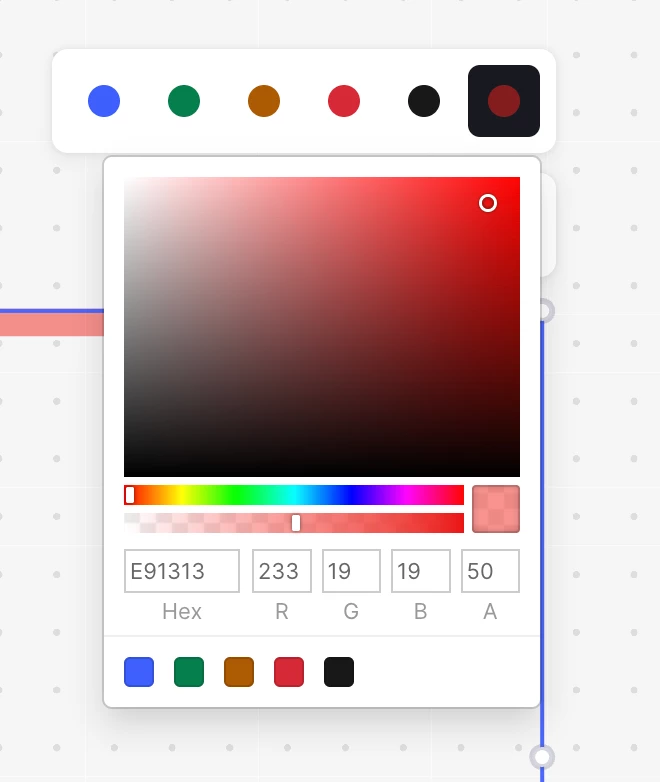
  3. Select the far-right color option for custom selection 
  4. Modify the color and the second slider (opacity)
  5. Draw additional lines as needed, modify the width an everything else before of-course!


Path / spline option (p on keyboard) - hold shift to make orthogonal
Use the custom color option to get the options for opacity
Color selector and opacity options (bottom)

Thanks,

Matt S.