Check the
documentation
Check the
documentation Ask the
Community
Ask the
Community Take a look
at
Academy
Take a look
at
Academy Cognite
Status
Page
Cognite
Status
Page Contact
Cognite Support
Contact
Cognite Support


This how-to article describes and provides a structured example template for automating the P&ID annotation process in Cognite Data Fusion (CDF). The process leverages CDF Data Modeling and Workflows to automate annotation, linking P&ID documents to assets and other related files within the data model.
Why Use This Module?
Save Time and Accelerate P&ID Contextualization
This module is built on production-proven code that has been successfully deployed across multiple customer environments. Instead of building a P&ID annotation pipeline from scratch—which typically requires weeks or months of development, testing, and iteration—you can deploy this module in hours and begin contextualizing your P&ID documents immediately.
Key Benefits
-
⚡ Production-ready: Battle-tested code based on real-world implementations running in production across several customers.
-
🚀 Quick deployment: Get up and running in hours, not weeks, through a simple configuration and deployment process.
-
🔧 Easy to extend: Clean, modular architecture makes customization straightforward.
-
📈 Scalable foundation: Runs as a single-threaded process by default, but is designed to be extended with parallel processing and asynchronous execution to handle large P&ID volumes.
-
🎯 Proven results: Incorporates best practices and lessons learned from multiple production deployments.
Time Savings
-
Development: Save weeks of development time by reusing proven, production-ready code.
-
Maintenance: Reduce ongoing maintenance with stable, tested components.
-
Iteration speed: Quickly adapt and extend the module to meet project-specific requirements.
Whether you are processing hundreds or thousands of P&ID documents, this module provides a solid foundation that can scale with your needs. Start with the single-threaded implementation for immediate value, and extend to parallel or asynchronous processing as volumes grow.
The final result is a set of populated annotations in the data model, linking P&ID files to assets and interrelated P&ID diagrams.

Key Features of the Workflow
Tagging Transformations for Input Filtering
-
Asset Tagging Transformation (
tr_asset_tagging): Adds aPIDtag to assets, enabling filtering during the annotation process. This serves as an example of how to control which assets are included in matching. -
File Tagging Transformation (
tr_file_tagging): Adds aPIDtag to files, enabling filtering of which files are included in the annotation process.
These transformations can be customized to align with project-specific conventions for identifying relevant assets and files.
Running the P&ID Annotation Process
The annotation workflow is configured via the extraction pipeline to match the structure and naming of your data model. Configuration includes:
-
Instance spaces – where your data is stored
-
Schema spaces – schema definitions of the data model
-
External IDs – for extended views or types
-
View/type version
-
Search properties – used for matching P&IDs to assets and files
-
Filter properties and allowed values (for example, tag values)
-
Debug mode and extensive logging
-
Single-file processing via configuration input
-
Delete functionality for cleanup scenarios
If you update or change thresholds for automatic approval or suggestions, existing annotations created by this workflow should be cleaned up. Only annotations created by this process are removed; manually created annotations or annotations from other processes are preserved. When cleanup is disabled, external IDs prevent duplicate annotation creation.
State is managed using a RAW database/table to support incremental processing. The workflow uses synchronous Data Modeling APIs to process only new or updated files.
Run Modes
-
Incremental mode: Processes only new or updated P&ID files using stored state.
-
ALL mode: Clears status and logs from previous runs in RAW and reprocesses all P&ID files.
-
Full cleanup: To also delete previously created annotations, set
cleanOldAnnotations = Truein the configuration.
Annotation Logic
-
Optional filtering of files and/or assets using configured filter properties
-
Matching based on search properties between P&IDs, assets, and files
-
Batch-level retry (up to three attempts) on failure
-
Fallback to individual file processing if batch processing fails
-
Failed individual files are logged and skipped
-
All matches are written to RAW tables (document-to-asset and document-to-document matches)
-
Threshold-based logic for automatic approval versus suggestion
-
Annotation creation using the Data Modeling service
-
Detailed status logging to the extraction pipeline
Performance and Scalability
The current implementation processes files sequentially in a single-threaded mode, making it ideal for fast onboarding and moderate P&ID volumes. For large-scale production environments (thousands of files), the module can be extended with:
-
Parallel processing to reduce overall execution time
-
Asynchronous operations for improved resource utilization
-
Batch size optimization based on infrastructure and file characteristics
The modular architecture makes these enhancements straightforward to implement as requirements grow.
Note: Naming conventions should be adjusted to align with project-specific standards.
Output & Visualization
- The workflow generates annotations that are displayed on P&ID diagrams as:
- Purple boxes – Linking to assets.
- Orange boxes – Linking to files.
- These annotations enhance data contextualization and improve traceability between P&IDs and related assets.

Deployment (Cognite Toolkit)
Prerequisites
Before you start, ensure you have:
- A Cognite Toolkit project set up locally
- Your project contains the standard cdf.toml file
- Valid authentication to your target CDF environment
- Access to a CDF project and credentials
- cognite-toolkit >= 0.7.33
Step 1: Enable External Libraries
Edit your project's cdf.toml and add:
[library.cognite]

url = "https://github.com/cognitedata/library/releases/download/latest/packages.zip"

checksum = "sha256:795a1d303af6994cff10656057238e7634ebbe1cac1a5962a5c654038a88b078"
This allows the Toolkit to retrieve official library packages.
Step 2 (Optional but Recommended): Enable Usage Tracking
To help improve the Deployment Pack:
cdf collect opt-in
Step 3: Add the Module
Run:
cdf modules init . --clean
⚠️ Disclaimer: This command will overwrite existing modules. Commit changes before running, or use a fresh directory.
This opens the interactive module selection interface.
Step 4: Select the P&ID Annotation Package (NOTE: use Space bar to select module)
From the menu, select (Note, select using space bar):
Contextualization: Module templates for data contextualization
  └── Contextualization P&ID Annotation
Step 5: Verify Folder Structure
After installation, your project should now contain:
modules
     └── accelerators
         └── contextualization
             └── cdf_p_and_id_annotation
If you want to add more modules, continue with yes ('y') else no ('N')
And continue with creation, yes ('Y') => this then creates a folder structure in your destination with all the files from your selected modules.
Step 6: Deploy to CDF
NOTE: Update your config.dev.yaml file with project, source_id and changes in spaces or versions
Optional: Modify the module’s default configuration to fit your project
- In your CDF toolkit configuration yaml file, update:
- location_name: replace LOC with the location name / Asset name that you are working on
- source_name: replace SOURCE with the source where your P&ID files are extracted from
- Update the folder structure:
Rename files replacing LOC and SOURCE where applicable. (or just test with default values)
Build deployment structure:
cdf build
Optional dry run:
cdf deploy --dry-run
Deploy module to your CDF project
cdf deploy
- Note that the deployment uses a set of CDF capabilities, so you might need to add this to the CDF security group used by Toolkit to deploy
Testing the Annotation module
If you wan to test the annotation process, it is possible to download test data from the included source data in CDF Toolkit.
The process to do this would be:
- In your local cdf.toml file :
[library.cognite]
url = "https://github.com/cognitedata/toolkit-data/releases/download/latest/packages.zip"
- Before you run cdf modules init . note the the local folder structure will be updated lost with the now content from the modules you now download (so copy/store or run the init of the annotation module again after setting up the test data)
cdf modules init . --clean - Select package:
- Models: Example of Minimum Extension of the Cognite Process Industry Model
- Select Yes to add more modules, and select:
- SourceSystem: Module templates for setting up a data pipeline from a source system
- And then (Note, select using space bar)
- SAP Asset data
- SharePoint files
After installation, your project should now contain:
modules
     ├── models
     │   └── cdf_process_industry_extension
     └── sourcesystem
         ├── cdf_sap_assets
         └── cdf_sharepoint
If you want to add more modules, continue with yes ('y') else no ('N')
And continue with creation, yes ('Y') => this then creates a folder structure in your destination with all the files from your selected modules.
- Edit your config.dev.yaml file
- Project è should be your CDF project name
- For cdf_files and cdf_sap_assets (details on access control see CDF documentation) :
- groupSourceId: if using Azure, access group ID from Entra ID used by system user and/or users setting up CDF that should be able update data model and run Transformations
- workflowClientId: environment variable with Entra ID object ID for APP
- workflowClientSecret: environment variable with secret value for APP
Build deployment structure:
cdf build
Optional dry run:
cdf deploy --dry-run
Deploy module to your CDF project
cdf deploy
⚠️ NOTE: Before running workflow that upload Assets/ Tags and creates hierarchy – make sure your transformation: Asset Transformations for SAP Springfield S/4HANA Assets don’t filter on ‘1157’ - making sure that all Assets are loaded to data model!
Run workflows to load data
- Sap_s4ana_population:
- files_metadata_springfield:
You should now have test data to run a simple example of the annotation process :-)
Run the P&ID File Annotation workflow
If your module structure was overwritten by the models for test data, clean up, merge or just run the module init again as instructed above for the P&ID annotation module. This to make it easy to make changes and redeploy when you are making the P&ID process relevant for your project.
After deployment, trigger the workflow click on Run) : P&ID File Annotation process via the CDF Workflows UI or API to execute the transformations in order.
In Integrate / Data Workflows: P&ID File Annotation process
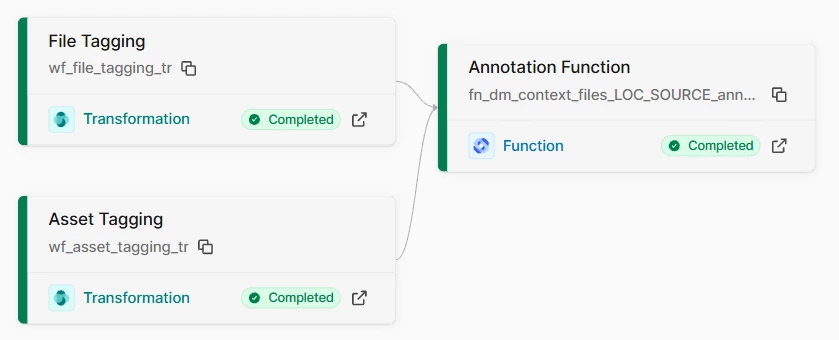
Click on Run to trigger the workflow
NOTE: failure to run could be related to access issues. The created access group gp_files_LOC_processing should be connected to a Source ID that was part of the configuration you did before cdf build. If the provided source ID not is connected to the application ID / Secret:
functionClientId: ${IDP_CLIENT_ID}
functionClientSecret: ${IDP_CLIENT_SECRET}
The processes will fail. For details on access control see Cognite documentation: https://docs.cognite.com/cdf/access
In CDF UI: Integrate/Staging, after running you should have (RAW Database & Tables):

In CDF UI: Build Solutions / Functions
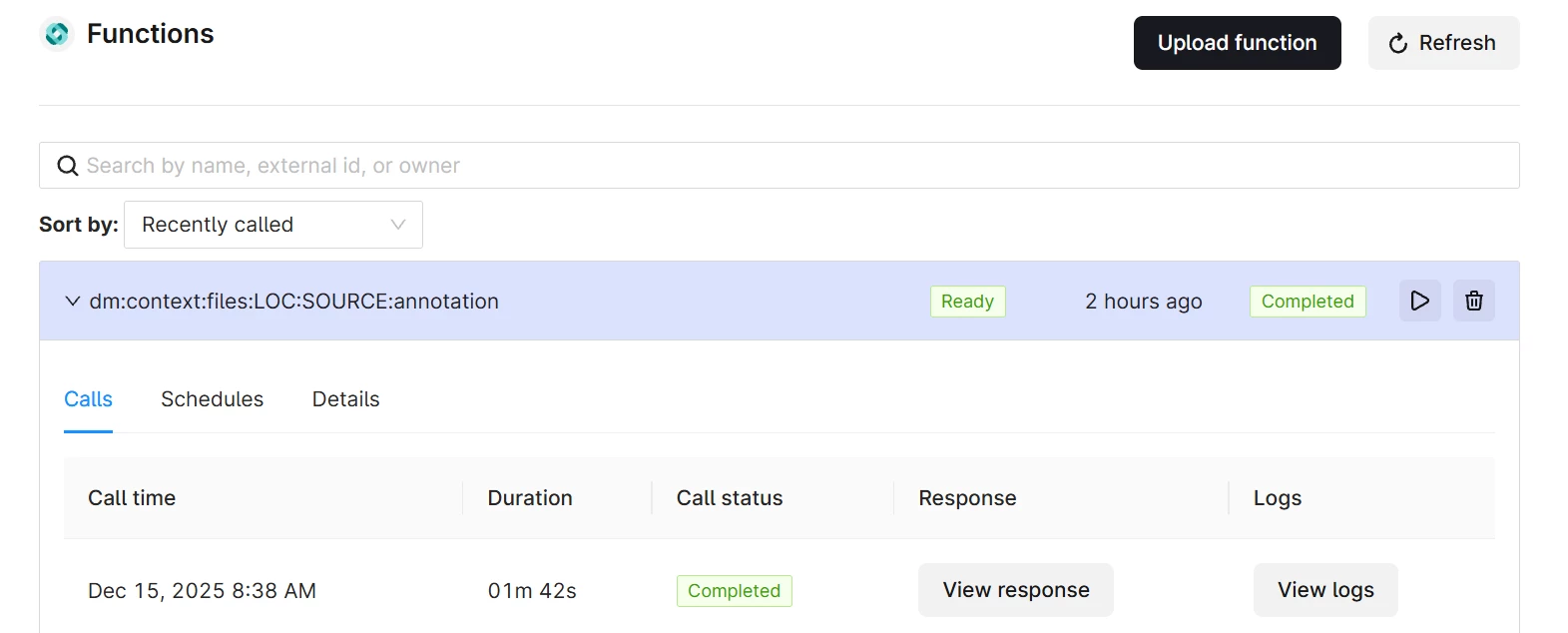
Click on View logs and verify that the included test data files where processed without any errors.
Use CDF Search (in Industrial Tools) to verify that annotations are correctly applied.
Confirm that P&ID assets are correctly linked within the data model.

Next Level
With the P&ID Workflow you have an important building block in creating a workflow or process around the annotation process. In the illustration below you now have the processes for:
- Process for Alias creations
- Reading of your sources to be annotated
- Diagram detection or annotation of the P&ID
- The output related to mapped Documents & Assets in RAW tables
Then utilizing this in your custom application or process with P&ID Edit functionality would provide high quality annotations that can be used in multiple settings/applications /use cases.