

 Check the
documentation
Check the
documentation Ask the
Community
Ask the
Community Take a look
at
Academy
Take a look
at
Academy Cognite
Status
Page
Cognite
Status
Page Contact
Cognite Support
Contact
Cognite Support


Try out Project settings to tailor the search experience
Hi everyone!
We know that for an end-user, finding data shouldn't feel like a "needle in a haystack" mission. Last summer, we launched Per-Project Search Configuration, and if you haven't set it up yet, your team might be missing out on a much cleaner experience.
As a Project Admin, you can curate what your users see when they sign in to Search. Instead of a generic view of data that maps 1:1 to your detailed data model definition, you can hand-deliver the most relevant data.
Why configure your categories?
-
Instant clarity: Define exactly which columns appear first. No more side-scrolling to find the "Status" or "ID."
-
Relevant filtering: Hide the noise. Display only the filters that actually matter for that specific category.
-
Context at a glance: Tailor the "Properties" card so the most crucial metadata is front and center.
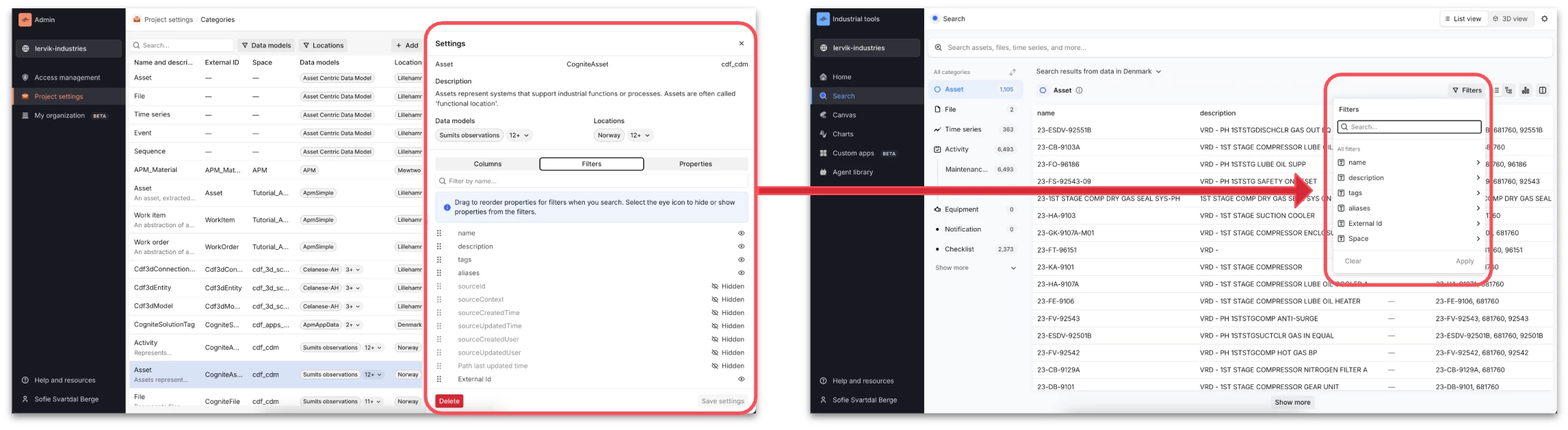
Quick guide:
-
Check access: Ensure you have
appconfig:read/writeandapp-scope = Search. Your users also needappconfig:readto make the config take effect for them. -
Finding the config options: Go to Admin workspace > Project Settings > Categories.
-
Configure: Pick a category and hit + Add.
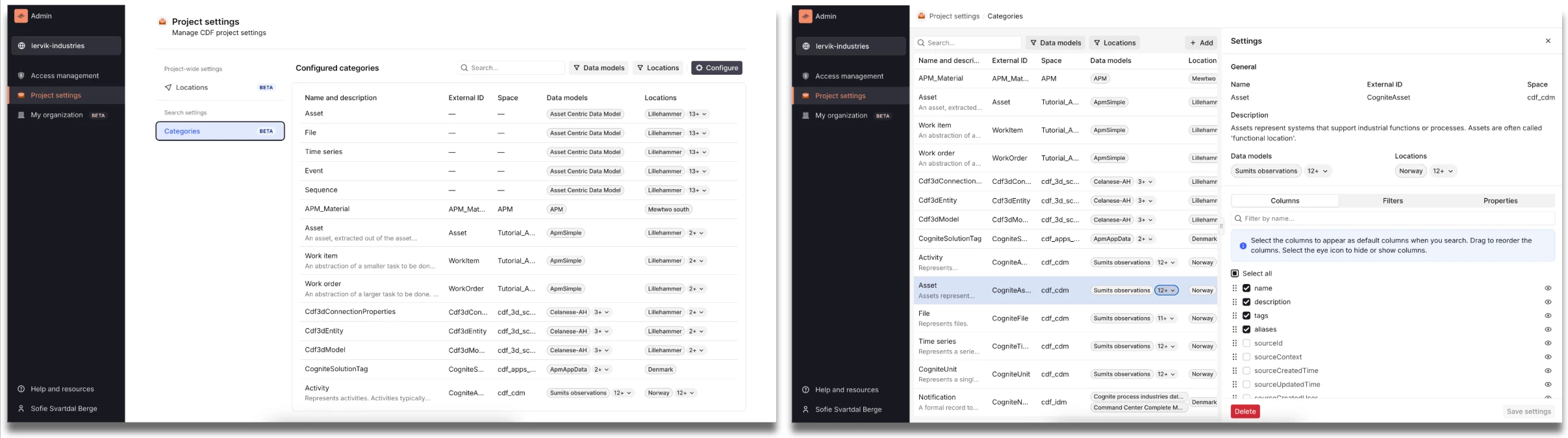
Pro Tip 💡: After you update the columns, remind your users to hit "Reset" in their search column selector to see your shiny new layout!
Ready to clean up your search? Full Guide here: https://docs.cognite.com/cdf/configure/project_settings/
Have you tried? Let me know if you have any feedback!
