

 Check the
documentation
Check the
documentation Ask the
Community
Ask the
Community Take a look
at
Academy
Take a look
at
Academy Cognite
Status
Page
Cognite
Status
Page Contact
Cognite Support
Contact
Cognite Support


How-To: Getting started with the CDF DB Extractor to populate staging (RAW) with records from a CSV file
Objective
Get started with setting up the Cognite DB Extractor on Windows to upload CSV data from a local file into Cognite Data Fusion (CDF) Staging (RAW).
Note: These instructions are written for and tested on the Cognite DB extractor version 3.* only.
Assumptions
-
Windows 10/11
-
You have an existing
.envfile from your CDF Toolkit setup -
You have access to upload to CDF Staging (RAW)
-
CSV file located at:
C:\Cognite\Data\csv\my-assets.csv
Example CSV file
Copy/paste this content to the my-assets.csv file if you need example records:
ExternalId,Name,Description,Tag,ParentTag
REF-1000,Refinery,Main refinery site,RF-1000,
REF-1100,Crude Unit,Crude distillation,CU-1100,RF-1000
REF-1200,Hydrotreater,Sulfur removal,HT-1200,RF-1000
REF-1110,Furnace,Heat crude feed,FN-1110,CU-1100
REF-1120,Distillation Column,Separate fractions,DC-1120,CU-1100
REF-1210,Reactor,Hydrogen treat,RC-1210,HT-1200
REF-1220,Separator,Gas-liquid split,SP-1220,HT-1200
REF-1230,Compressor,Gas pressurization,CP-1230,HT-1200
Explanation (Steps)
1 — Download and Extract
Download the Windows DB Extractor executable from CDF:Data management → Extractors → Search for: DB Extractor
Extract to:
C:\Cognite\db-extractor\
2 — Copy file with environment variables
Place your .env file in the same folder as the extractor executable, e.g.:
C:\Cognite\file-extractor\.env
Your .env contains the environment variables the extractor reads, at a minimum:
CDF_URL=https://<your-cdf-host>
CDF_PROJECT=<your-project>
IDP_CLIENT_ID=…
IDP_CLIENT_SECRET=…
IDP_TOKEN_URL=https://login.microsoftonline.com/<tenant-id>/oauth2/v2.0/token
IDP_SCOPES=https://<your-cluster>.cognitedata.com/.default
3 — Create Configuration File
Save as C:\Cognite\db-extractor\dbextractor-csv-to-raw-config.yml and update destination database and table to match your configuration:
# Configuration template for the Cognite DB Extractor version 2.x

# Config schema version
version: 2
type: local

# Configure logging to standard out (console) and/or file.
logger:
  console:
    level: INFO

# Information about CDF project
cognite:
  host: ${CDF_URL}
  project: ${CDF_PROJECT}

  idp-authentication:
    client-id: ${IDP_CLIENT_ID}
    token-url: ${IDP_TOKEN_URL}
    secret: ${IDP_CLIENT_SECRET}

    scopes:
      - ${IDP_SCOPES}

databases:
  -
    type: spreadsheet
    name: local-csv-file
    # path to your local spreadsheet file
    path: C:\Cognite\Data\csv\my-assets.csv

queries:
  -
    # User-given name for query
    name: test-local-csv-file
    # Name of database to use (as specified in the databases section)
    database: local-csv-file
    # Name of the excel sheet you want to query.
    sheet: Sheet1

    # The extractor expects SQL syntax in order to query data from a local spreadsheet
    query: >
      SELECT
      *
      FROM
      Sheet1

    primary-key: my_{ExternalId}

    # Where to upload data in RAW
    destination:
      type: raw
      database: ingestion-data
      table: my-assets
Records are created in the specified database and table in Staging.
Best practice tip: Keep a local stub of the configuration and manage the rest of the config in a CDF extractor pipeline: https://docs.cognite.com/cdf/integration/guides/interfaces/configure_integrations
4 — Run the Extractor
cd C:\Cognite\db-extractor .\dbextractor-standalone-v3.9.0-win32.exe dbextractor-csv-to-raw-config.yml
5 — Verify in CDF
-
Open CDF → Data management → Staging
-
Click the database and table defined in your config file
-
Verify that your records from
my-assets.csvhave been uploaded successfully
6 — What now? Populate the Data Model from Staging?
After uploading your CSV data to Staging (RAW), you can create a CDF transformation to read from the RAW table and populate your Core Data Model (e.g., as Asset objects):
-
Open CDF → Data modeling → Transformations → Create transformation
-
Set the source as the RAW database and table you uploaded
-
Write SQL or map the CSV columns to the corresponding Asset node properties in your data model
-
Configure the transformation to upsert or create new nodes in the target space
-
Run the transformation to populate your Asset objects
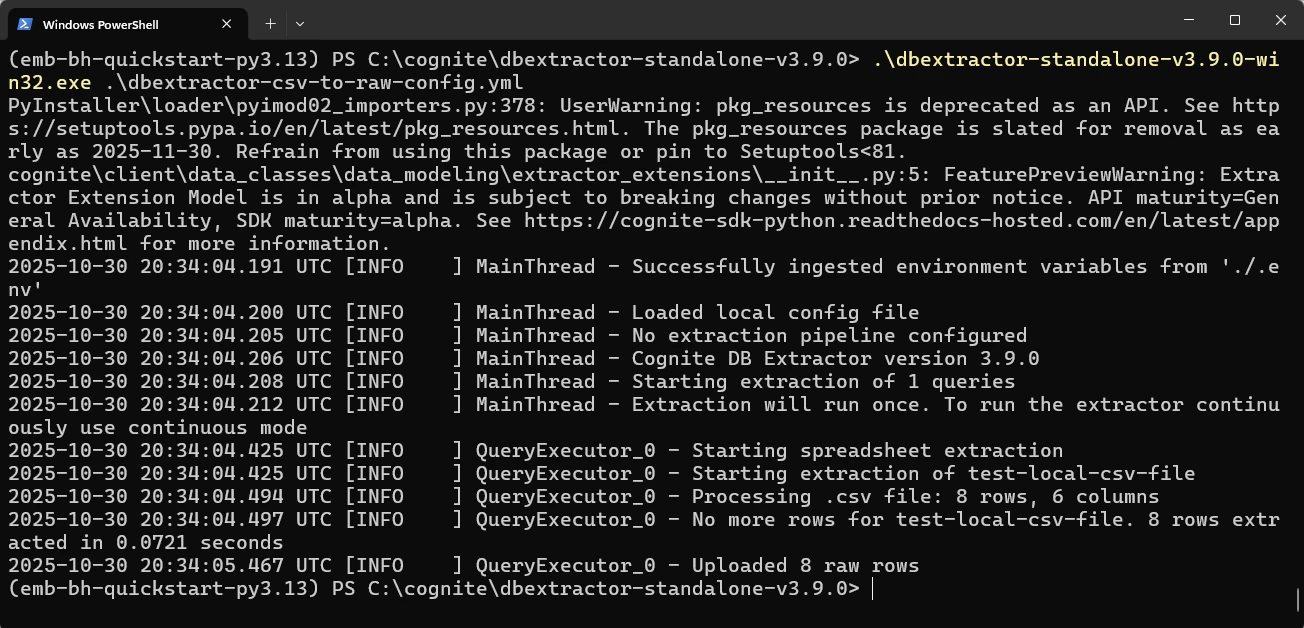
More about configuring the DB Extractor can be found here: https://docs.cognite.com/cdf/integration/guides/extraction/configuration/db
