Check the
documentation
Check the
documentation Ask the
Community
Ask the
Community Take a look
at
Academy
Take a look
at
Academy Cognite
Status
Page
Cognite
Status
Page Contact
Cognite Support
Contact
Cognite Support

I’m searching for a specific document using Search. The doument ID is hidden in a metadata tag.
If I search for this document ID in the search bar, the file is not discovered (obviously it doesn’t search in metadata)
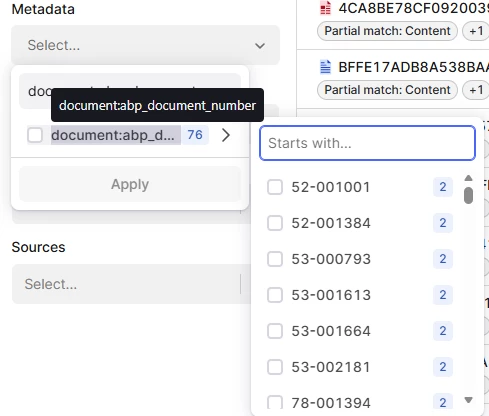
Plan B is to use the filter (which is inconvenient since it forces me to know that particular metadata key)
The metadata key is document:abp_document_number, but it doesn’t show up when I search in the filters

If I use the Data explorer under Data management, it discovers the metadata key, allowing me to filter on it
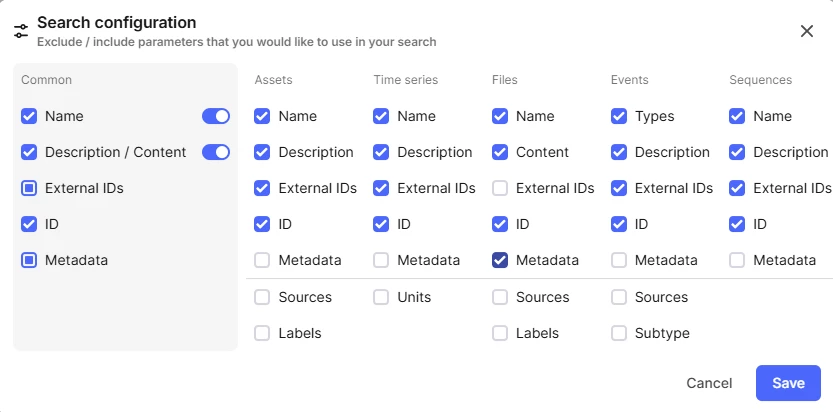
But there is an even better way of doing this in Data explorer. There I can edit the search settings and instruct it to look in the metadata. Then it discovers it immediately. This allows me to find the document without having to know to filter on this very cryptic key. For classic data model, where a lot of info is dumped in metadata, with poor governance on the keys, the ability to search in metadata is VERY useful